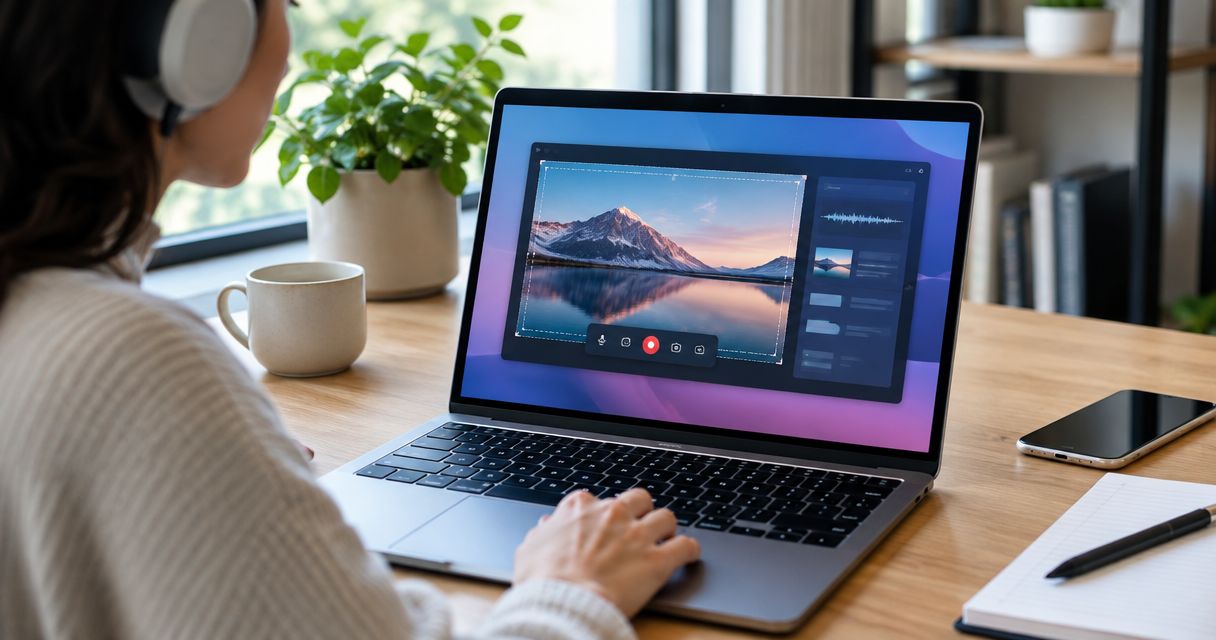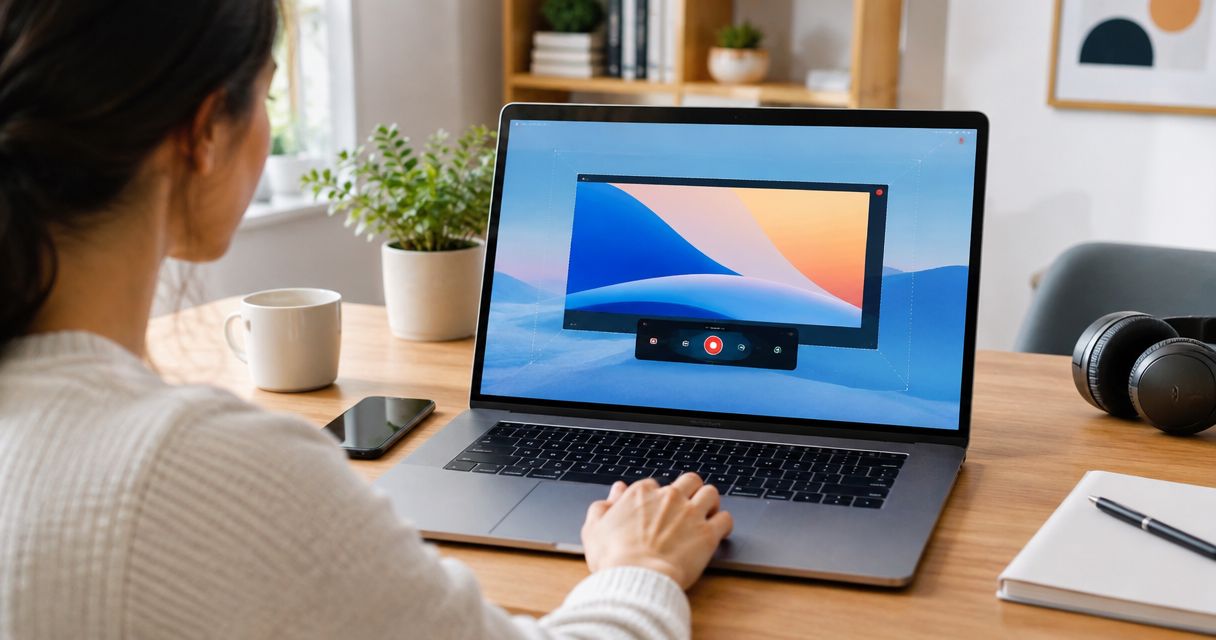
Best overall for support and documentation: Zight. Best for video-first team updates: Loom. Best for instructional recordings: Screencastify. Choose your screen recorder Chrome extension around the work that happens after capture: troubleshooting, sharing an update, or teaching a repeatable task.
- Zight is the best screen recorder Chrome extension choice here for teams combining screenshots, recordings, and documentation.
- Choose Loom for video-first updates; evaluate Screencastify for instructional recording workflows.
- Test browser capture, audio, viewer access, and sharing controls before choosing a paid screen recording tool.
- Healthcare teams must confirm contractual requirements and approved workflows before recording protected health information.
Why this matters
A recording is useful only if the recipient can understand it and act. A clear screenshot can settle a question faster than a narrated walkthrough; a video can show a sequence that still images miss.
For a paid team rollout in 2026, evaluate the complete handoff. You need to know what gets captured, where the result goes, who can open it, and how someone finds the answer later. A recorder that suits personal demonstrations does not automatically suit support tickets or internal training.
Choose the smallest capture format that explains the problem, then check the sharing workflow. That rule matters more than a long feature list.
What makes the best screen recorder Chrome extension?
Use these criteria before comparing names. Each criterion should map to a real task your team performs.
- Capture fit: Confirm whether the browser workflow captures the tab, window, or screen you need. Test the actual application rather than assuming every surface behaves identically.
- Audio clarity: Record the microphone and any required application audio. Listen to the saved result, not just the recording preview.
- Explanation format: Decide whether your team needs video alone or a combination of screenshots, recordings, and written instructions.
- Viewer access: Open the shared result as the intended recipient. Check sign-in requirements, permissions, and the experience outside your organization.
- Information control: Review what appears in the capture and who receives access. Notifications, unrelated tabs, and account details need attention before recording.
- Repeatability: Check how a teammate updates an explanation when the interface changes. A useful answer should not become an unmaintained instruction.
For your 2026 evaluation, separate requirements from preferences. Required application audio is a pass-or-fail condition; a preferred presentation style is not. Decide those boundaries before a polished demonstration distracts you.
Screen recorder Chrome extensions at a glance
These recommendations assign each option a distinct job. They are workflow recommendations, not claims that one product wins every feature comparison.
| Option | Best for | Standout focus | Key limitation to consider |
|---|---|---|---|
| Zight | Support and documentation across capture formats | Screen recording, screenshots, and AI-powered guides/documentation | A capture tool still needs an owner for instructions and updates |
| Loom | Video-first team updates | Recorded video explanations | Video is not always the easiest format for finding one instruction |
| Screencastify | Instructional recordings | Browser-based screen recording for explaining tasks | A recorded lesson still needs structure and maintenance |
Start competitor evaluation with Loom, then compare Screencastify against the same task. Use current product documentation to confirm extension behavior, permissions, and paid-plan requirements before purchasing. Do not transfer a capability from a desktop application to its browser extension without checking it.
1. Zight: best for support and documentation
Zight combines screen recording, screenshots, and AI-powered guide/documentation software for business teams. Its shareable-link workflow fits support explanations, product feedback, and engineering troubleshooting where the recipient needs to see what happened.
Zight is best for support and engineering teams that need screenshots, recordings, and documentation in the same visual communication workflow. Start with the question you need to answer, not with the record button.
For a support reply, capture the exact point where a customer gets stuck. Use a screenshot when the answer is a location or setting; use a recording when the sequence matters. For an internal handoff, turn the explanation into instructions that someone else can follow without joining a meeting.
Zight pros:
- Covers both still-image explanations and screen recordings.
- Includes AI-powered guide/documentation software alongside capture.
- Serves support, sales, product, and engineering communication workflows.
- Uses shareable links for asynchronous explanations and troubleshooting.
Zight cons:
- A shared recording does not replace ownership of an SOP or its review process.
- Sensitive workflows still require a separate review of capture content, access, and applicable contractual requirements.
Best for: Business teams choosing capture software for recurring support and documentation work, rather than occasional personal recordings.
For a paid pilot, give a support agent and an engineering teammate the same sample issue. Ask each to explain it, share the result, and identify the next action. Compare whether the recipient can respond without asking where to look.
Verdict: Buy for mixed screenshot, recording, and documentation workflows after the browser-extension pilot passes.
2. Loom: best for video-first team updates
Loom is a screen recording option for teams that want to explain work through recorded video. It belongs first in a competitor comparison when your starting point is a spoken walkthrough rather than a screenshot or written procedure.
Use a project update as the evaluation task. Show the work, explain what changed, and state the decision you need from the recipient. Then check whether the recipient can find that decision without replaying the entire explanation.
Loom pros:
- Fits demonstrations where movement and narration carry the explanation.
- Gives teams a video-first approach to asynchronous updates.
- Suits walkthroughs where viewers need to see a sequence in context.
Loom cons:
- A video-first explanation can be excessive when one annotated image would answer the question.
- A recorded update is not, by itself, a maintained procedure that readers can scan step by step.
These are format trade-offs, not claims that Loom lacks supporting features. Verify current browser-extension functionality and the capabilities included in the plan you are considering.
Best for: Teams whose main deliverable is a narrated update, review, or demonstration.
In a 2026 comparison, use the same script and recipient for every candidate. Differences in preparation can make one recorder appear clearer even when the recording software is not responsible.
Verdict: Buy for video-first updates when the recipient test confirms that recordings are the right format.
3. Screencastify: best for instructional recordings
Screencastify is a browser-based screen recording option to evaluate for task demonstrations. Its role in this shortlist is instructional recording: showing someone how to complete a defined activity.
Give the recording a clear beginning and end. Start with the required starting state, demonstrate the task, and finish by showing what success looks like. This structure helps you judge the recorder without confusing software selection with lesson planning.
Screencastify pros:
- Fits screen-based explanations of a repeatable task.
- Provides a browser-centered option for instructional recording.
- Suits a pilot built around a short, clearly defined demonstration.
Screencastify cons:
- Recording a task does not establish whether the learner understood it.
- Interface changes can make an otherwise clear demonstration outdated.
Confirm current sharing, editing, and account requirements directly before choosing a paid plan. Evaluate only the features available in the browser workflow you intend to deploy.
Best for: Teams prioritizing instructional recordings over broader support handoffs or project-update videos.
Verdict: Buy for browser-based instruction after a learner completes the demonstrated task without extra guidance.
Test the complete workflow before you buy
Do not evaluate a screen recorder Chrome extension with an empty desktop and a rehearsed greeting. Use a representative task, a realistic recipient, and synthetic information.
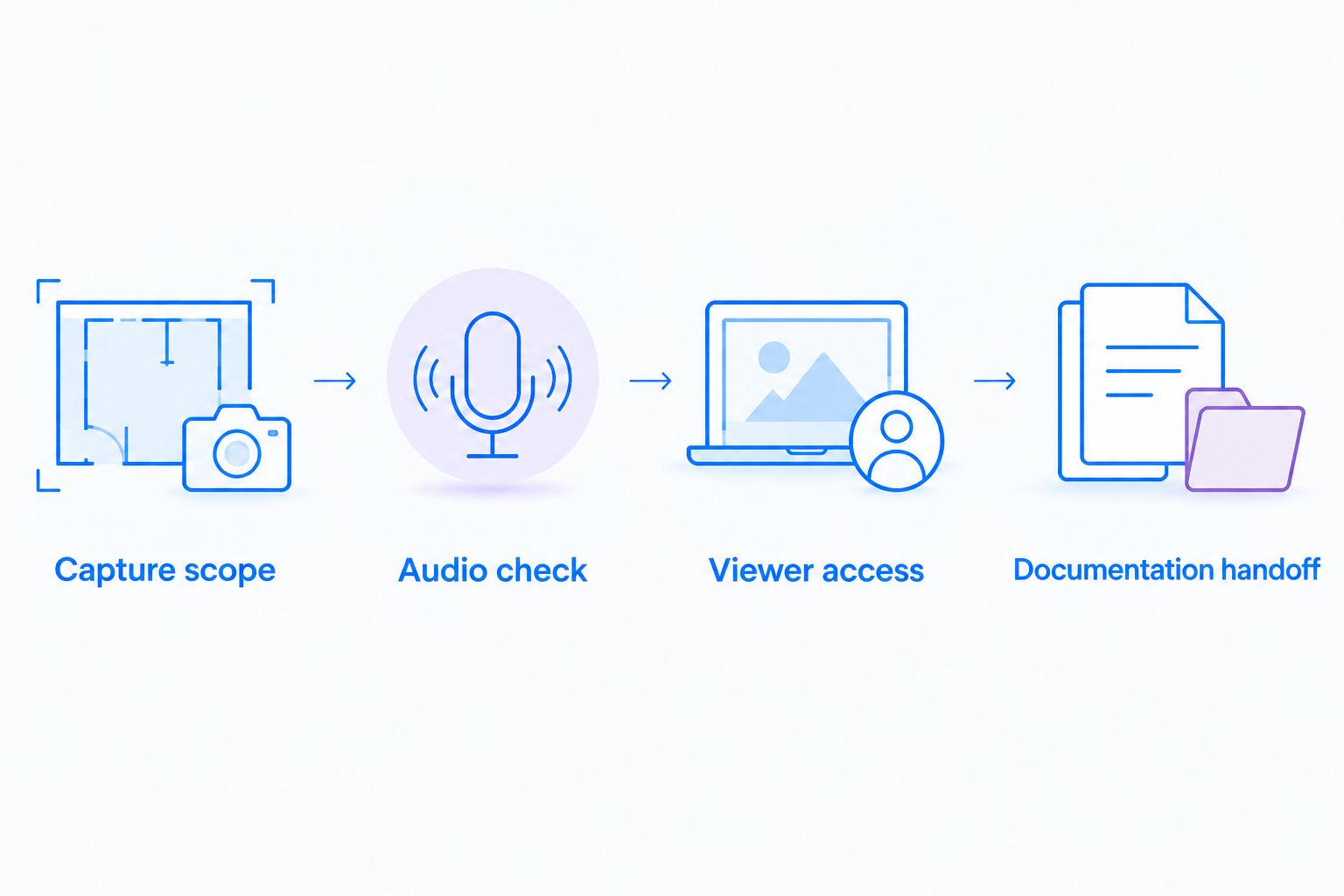
For your 2026 pilot, create 3 recordings: a support issue, a project update, and a task demonstration. Ask 2 reviewers to assess each result independently. These are suggested pilot parameters, not product limits or performance benchmarks.
Capture scope
Record the application surface your team actually uses. Move between the screens required for the task and inspect the saved result for missing context or unintended content.
If your workflow leaves Chrome, test that transition explicitly. Do not assume browser and desktop recording modes offer identical behavior.
Audio check
Record a spoken explanation and any application sound the recipient needs. Play the result through ordinary headphones and check whether the important words and sounds are understandable.
If the recipient does not need narration, repeat the task without it. Silence can be the clearer choice for a simple visual answer.
Viewer access
Send the result to a reviewer using the intended access conditions. An internal teammate and an external customer are different tests.
Ask the reviewer to state the next action. If the answer is unclear, first inspect the explanation and then inspect the delivery experience.
Documentation handoff
Choose 1 workflow that needs a reusable procedure. Check whether the recording, screenshots, and instructions can become a reference someone can maintain.
Assign an owner before rollout. Capture software cannot decide when your process has changed or which instruction is now authoritative.
Healthcare teams need a separate approval gate
A screen recorder recommendation is not a HIPAA compliance determination. For a healthcare rollout in 2026, confirm current plan requirements, business associate agreement availability, applicable feature limitations, and your organization's approved use directly before capturing protected health information.
Do not assume that approval for one recording workflow covers video requests, generated documentation, or connected support systems. Evaluate each proposed data path separately, including the destination and recipient access.
Use synthetic examples throughout the evaluation:
- Support and IT troubleshooting: Reproduce a portal error with a demonstration account. Show the failure and the expected behavior without exposing patient records or live tickets.
- Clinical recording and video requests: Demonstrate an administrative software task with fabricated information. Assess both the recording process and the proposed request workflow before either receives approval.
- Operations training and SOPs: Build instructions for a nonclinical process using a mock environment. Assign a reviewer to check the procedure and remove unintended sensitive content.
These examples test software communication, not clinical judgment. Do not include patient data or medical advice in the pilot.
Treat support integrations as a separate verification item. Confirm the exact integration, supported data flow, and applicable contractual coverage from current official documentation; do not infer approval because two applications can exchange a link.
How the recommendations are ranked
The ranking follows the criteria above: capture fit, audio, explanation format, viewer access, information control, and repeatability. The default recommendation favors the business need described here: combining visual explanations with reusable documentation.
Loom takes the video-update slot because that evaluation starts with narration. Screencastify takes the instructional-recording slot because that evaluation starts with a defined learning task. Neither placement establishes a universal feature winner.
This is a workflow-based shortlist, not a hands-on performance benchmark. Make the final decision using the saved outputs from your own pilot and current official feature documentation.
Which screen recorder Chrome extension should you choose?
Choose Zight when your paid team needs to move between screenshots, recordings, and documentation. Choose Loom when video updates are the main output, and evaluate Screencastify when instructional recordings are the priority.
Do not buy around an imagined future workflow. Select the option that passes your most frequent task, recipient-access test, and information-control requirements today. Expand the rollout only after someone owns the resulting content.
FAQ
What's the best screen recorder Chrome extension for a business team?
Zight is the default recommendation here for business teams combining screenshots, recordings, and documentation. Loom fits video-first updates, while Screencastify belongs on the shortlist for instructional recordings.
Is Loom better than a recorder with screenshots and guides?
Loom is the better workflow fit when your main output is a narrated video update. If your team also needs still-image explanations and maintained instructions, evaluate those tasks separately rather than choosing on recording alone.
Can a Chrome extension record everything outside the browser?
Do not assume a Chrome extension captures every application or recording surface. Test the exact tab, window, screen, and application transitions your workflow requires, then inspect the saved result.
How do I check whether a screen recorder captures audio correctly?
Record the microphone and any required application audio, then listen to the saved recording. Test the same browser workflow and permissions your team will use after deployment.
Can healthcare teams use a screen recorder Chrome extension?
Healthcare teams need approval for the specific tool, contract, features, and data flow before capturing protected health information. Confirm current plan requirements and business associate agreement availability directly, and use synthetic information during evaluation.
Should I use a screenshot or a screen recording for support?
Use a screenshot when the answer is a location, setting, or visible state. Use a recording when the recipient needs to see movement, a sequence, or a reproducible failure.
What should I check before buying a paid screen recorder?
Check capture scope, audio, recipient access, information controls, and documentation maintenance. Confirm current plan entitlements directly and make the purchasing decision from a realistic pilot rather than a feature list.
One last thing
Before recording, write the action you want the viewer to take in a single sentence. If you cannot state it clearly, tighten the explanation first.
Your final acceptance test is not whether the video looks polished. It is whether the recipient can complete the next step without another meeting.