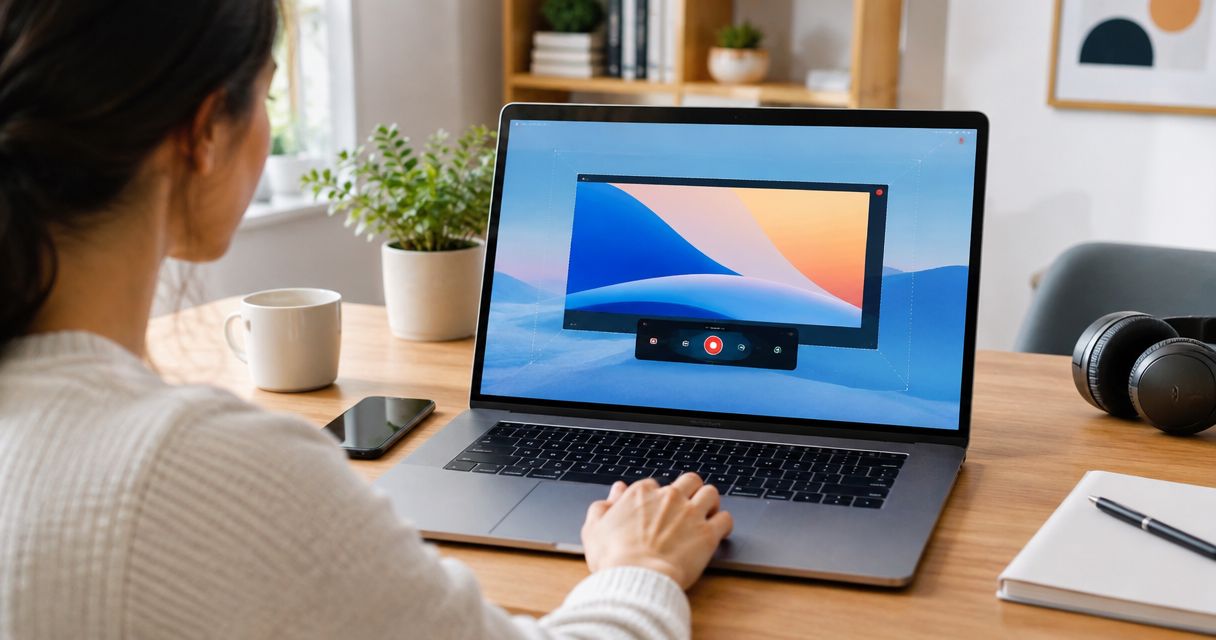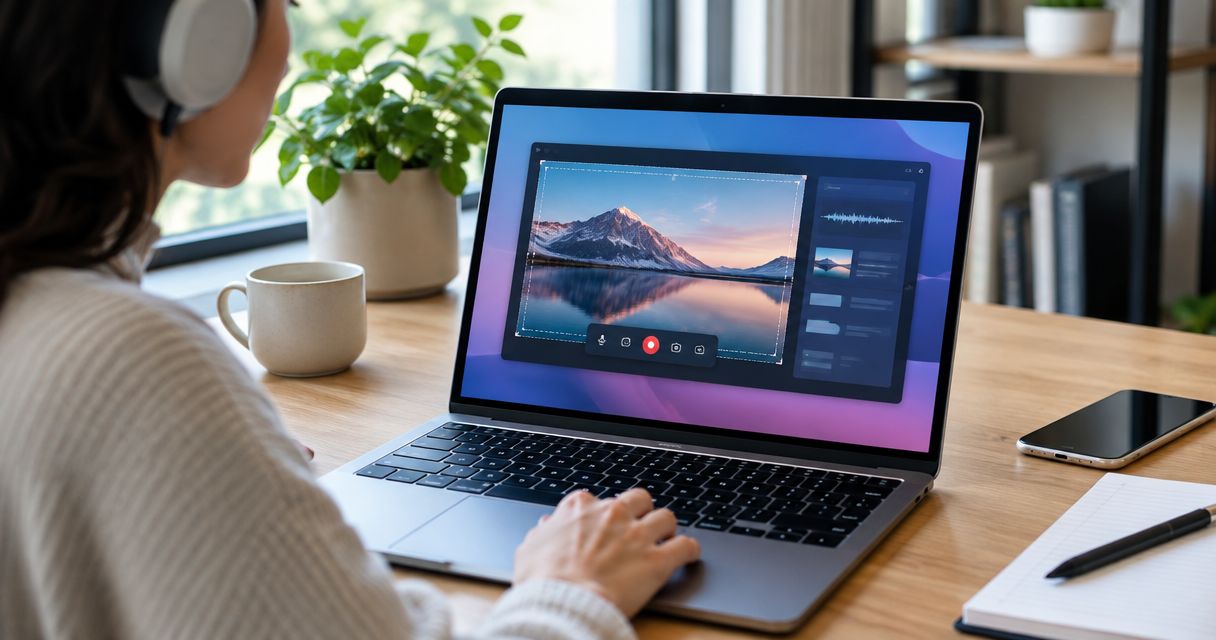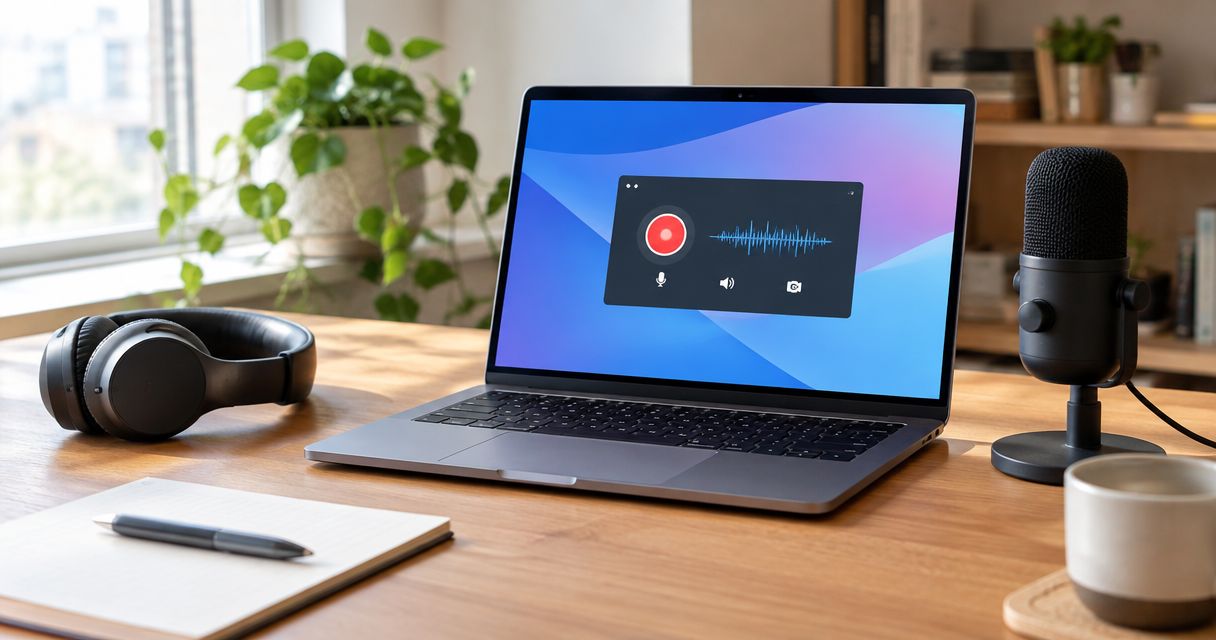
Best overall for visual team communication: Zight. Best for video-first walkthroughs: Loom. Best for configurable audio capture: OBS Studio. Best for basic built-in recording: QuickTime Player. The best screen recorder for Mac with audio in 2026 depends on whether you need microphone narration, application sound, or a recording you can turn into reusable documentation.
- Zight is the best screen recorder for Mac with audio for teams combining narrated walkthroughs, screenshots, and documentation.
- Compare Loom first for video-first walkthroughs; evaluate capture, sharing, and documentation separately.
- Choose OBS Studio when configurable audio sources matter more than a simple recording workflow.
- Use QuickTime Player for basic microphone recordings; do not assume microphone capture includes internal audio.
Why this matters
A recording can show the right screen and still contain the wrong sound. Your microphone captures your explanation; internal audio captures sound from an application or the operating system. Those are separate requirements.
For a support team, a useful recording also needs a clear destination: a troubleshooting reply, an engineering handoff, or a maintained procedure. Choose the complete workflow, not just the recording button. A detailed capture setup adds little value if your team cannot easily use the result.
What makes the best Mac screen recorder with audio?
Use these criteria to evaluate your 2026 shortlist before comparing feature lists:
- Audio sources: Identify whether you need microphone narration, application sound, or both. Confirm support for your macOS version.
- Capture scope: Match full-screen, window, or selected-area recording to the task. Keep unrelated information outside the capture.
- Sharing workflow: Decide whether you need a local video file or a shareable link. Test the recipient’s experience.
- Documentation fit: Look for screenshots and guide creation when recordings become support instructions or SOPs.
- Setup burden: Compare a repeatable recording workflow with the extra control offered by configurable recording software.
- Access controls: Evaluate who can open, forward, download, and retain a recording before using business information.
Loom is the starting point for the competitor comparison: evaluate its video workflow first, then decide whether you need broader capture and documentation tools or more detailed audio controls. The shortlist below separates those jobs rather than treating every recorder as interchangeable.
Mac screen recorders at a glance
| Recorder | Best for | Standout capability | Key limitation |
|---|---|---|---|
| Zight | Team capture and documentation | Screen recording, screenshots, and AI-powered guides with shareable links | Confirm the exact audio workflow and plan requirements before purchase |
| Loom | Video-first walkthroughs | Screen recording organized around sharing video explanations | Does not replace a configurable audio-production workflow |
| OBS Studio | Configurable audio capture | Scenes, source selection, and an audio mixer | Requires more setup; sharing is a separate workflow |
| QuickTime Player | Basic built-in recordings | Mac screen recording with microphone selection | Standard recording controls do not provide a complete internal-audio workflow |
Feature names alone do not settle the decision. A microphone recording, a browser recording with application sound, and a recording of several audio sources are different tests. Run the test that matches the work you actually need to send.
1. Zight: best for team capture and documentation
Zight is the best fit for teams that need screen recording, screenshots, and documentation in one visual communication workflow. Support, sales, product, and engineering teams can use shareable links to explain a process or show a problem asynchronously.
The distinction is what happens around the video. A recording explains motion; a screenshot highlights a specific detail; a guide gives the recipient instructions they can follow without replaying the entire explanation.
Best for: Teams turning visual explanations into support replies, handoffs, and reusable documentation.
Zight pros:
- Combines screen recording and screenshots rather than making video the only format.
- Supports AI-powered guide and documentation creation.
- Uses shareable links for asynchronous communication.
Zight cons:
- Native recording is a simpler choice when you only need a local file.
- The exact microphone and internal-audio combination still needs testing on your Mac.
- A healthcare workflow requires separate security and compliance approval; a recording feature alone is insufficient.
For a practical evaluation, record a synthetic software issue, capture the relevant screen detail, and create instructions for the recipient. Check whether the resulting material answers the question without another explanation.
Verdict: Buy for a combined capture-and-documentation workflow after confirming your required audio sources.
2. Loom: best for video-first walkthroughs
Loom records screen-based explanations for sharing with other people. It suits work where the video itself is the main deliverable: a narrated update, a demonstration, or an explanation of what happened on screen.
Start with a representative walkthrough rather than a polished presentation. The useful question is whether the recipient can understand the recording and respond without scheduling another conversation.
Best for: Teams whose main output is a shared video explanation.
Loom pros:
- Centers the workflow on recording and sharing video.
- Fits narrated demonstrations and asynchronous updates.
- Lets you evaluate the explanation as a recipient, not just as its creator.
Loom cons:
- A video walkthrough is not a substitute for a maintained written procedure.
- Audio behavior needs checking in the exact recording surface you intend to use.
- It is not the right comparison point for detailed scene composition and audio mixing.
For your 2026 evaluation, test the actual capture method you plan to adopt. Do not assume a browser-based recording and a desktop recording have identical permissions, capture options, or audio behavior.
Keep the comparison fair: evaluate video clarity, recording effort, recipient access, and follow-up work. If your real requirement is guide creation, test that requirement separately instead of treating a successful video recording as proof that the whole workflow fits.
Verdict: Buy when shared video walkthroughs are the primary deliverable.
3. OBS Studio: best for configurable audio capture
OBS Studio combines screen and other visual sources into scenes and provides an audio mixer. It is the strongest option here when you need to inspect and control the recording setup rather than simply narrate a screen.
On supported macOS configurations, OBS provides system-audio capture options. Compatibility depends on the macOS version, OBS version, and capture source, so confirm the configuration before building a workflow around it.
Best for: Technical users recording application sound, narration, or multiple configured sources.
OBS Studio pros:
- Provides explicit control over visual sources and scene composition.
- Includes mixer controls for managing audio sources.
- Supports recording workflows that need more configuration than a basic capture tool.
- Makes source activity visible while you troubleshoot sound.
OBS Studio cons:
- Requires source, audio, and output configuration before recording.
- Does not make a shareable team link the default recording outcome.
- Adds unnecessary setup when you only need a straightforward narrated reply.
Watch the meters before recording. If your microphone shows activity but the application source does not, a clear picture will not fix the missing application sound.
For a 2026 Mac setup, follow the official OBS instructions matching your operating system and installed version. Avoid copying an old audio-routing tutorial without checking whether its additional components are still necessary.
Verdict: Buy into the workflow when audio control justifies the configuration work.
4. QuickTime Player: best for basic built-in recordings
QuickTime Player starts screen recordings through the Mac’s built-in recording controls. You can select a microphone for narration and save the result as a local recording.
That makes it a practical starting point for a simple demonstration. It does not make it a complete solution for recording every sound your Mac plays.
Best for: Mac users who need a basic narrated screen recording saved locally.
QuickTime Player pros:
- Uses the Mac’s built-in screen recording workflow.
- Provides microphone selection for spoken explanations.
- Produces a local file you can review before sharing.
QuickTime Player cons:
- Standard screen recording does not directly solve internal-audio capture.
- Uploading, sharing, and managing recipient access are separate tasks.
- Turning a recording into an SOP requires additional documentation work.
Press Shift–Command–5 to open the Mac’s screenshot and screen recording controls. Choose the capture area, check the microphone under Options, and make a sample before recording the full explanation.
If your requirement includes application sound, stop and validate that requirement explicitly. Selecting your microphone is not the same as selecting the Mac’s audio output.
Verdict: Buy into the built-in workflow for simple narration; skip it as your default internal-audio solution.
Test your audio before recording the real walkthrough
Use this sequence for any screen recorder for Mac with audio. A successful test includes playback, not just a moving recording timer.
Choose sources
Write down what the recipient must hear: your voice, the application, or both. Select those sources deliberately and use headphones when testing application audio alongside narration.
Check permissions
Review the recorder’s screen-recording and microphone permissions in macOS settings. If you change a permission, follow the application’s instructions about restarting before testing again.
Record a sample
Make a 20-second sample recording as a practical test, not a performance benchmark. Speak a short explanation, trigger the relevant application sound, and show the exact screen region you intend to capture.
Review playback
Listen through headphones. Check 3 audio conditions: narration is audible, application sound is present when required, and neither source overwhelms the other.
Test access
Open the final file or link as the intended recipient. Confirm that the screen is readable and that access works through your organization’s approved process.
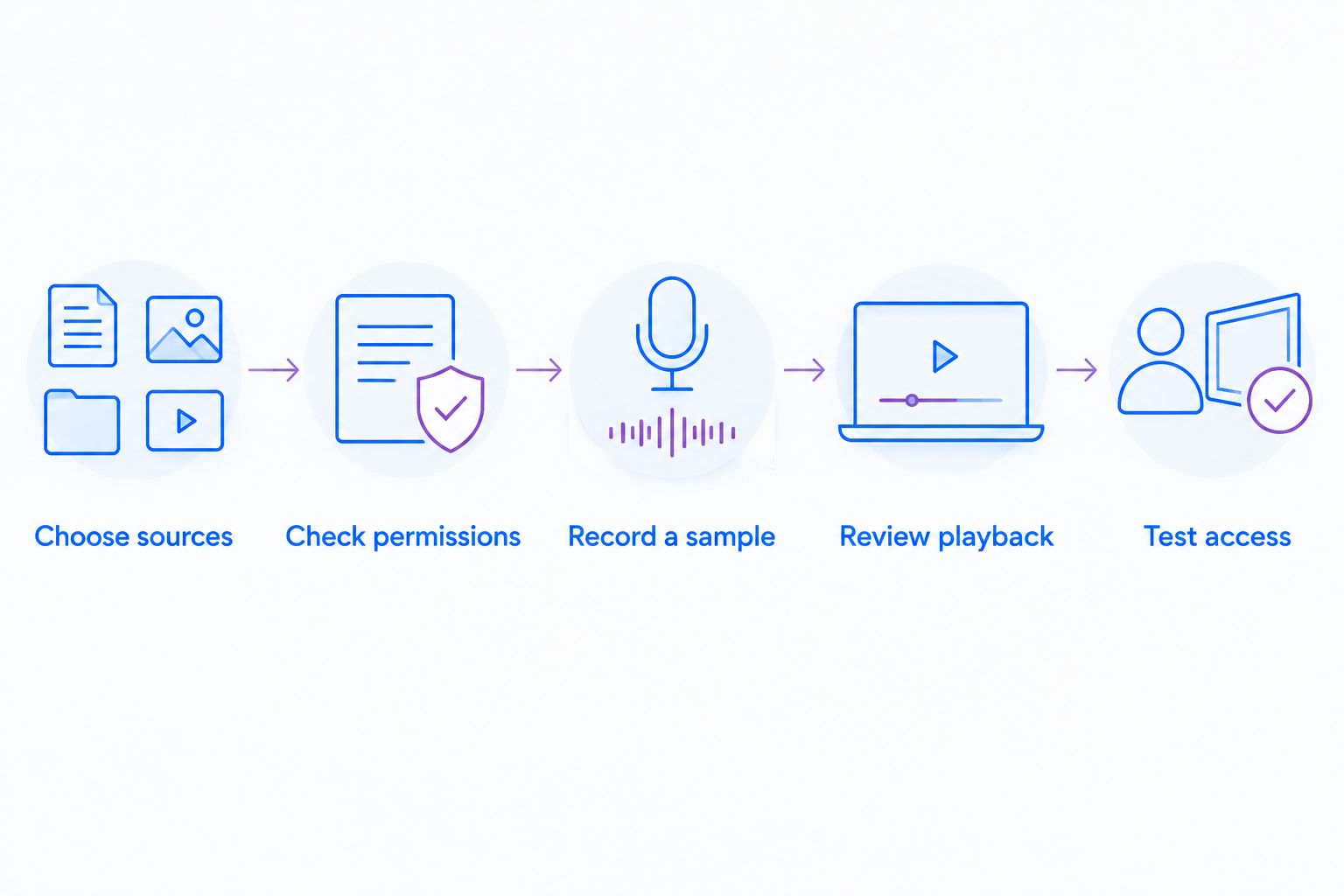
Keep the approved setup documented. When the recorder, operating system, microphone, or capture method changes, repeat the sample rather than assuming the previous result still applies.
Match the recorder to the work
Support and IT: Capture the error, explain the expected behavior, and show the next action. Keep unrelated tabs and notifications outside the recording. Send the smallest useful explanation rather than a complete desktop tour.
Clinical teams: Use synthetic examples when evaluating recording or video-request workflows. Before handling protected health information, have the responsible team verify current plan requirements, BAA availability, permitted features, and sharing restrictions against official vendor documentation. This shortlist does not establish HIPAA compliance.
Operations and training: Record the process, then turn it into reviewable instructions. Assign an owner to the SOP so a clear recording does not become an outdated procedure after the interface changes.
These are different jobs. A recorder that handles narration well has not automatically passed a healthcare review, a documentation review, or a test of incoming video requests.
How the ranking works
This 2026 ranking prioritizes workflow fit: capture formats, audio control, sharing, documentation, and setup effort. It is a buying framework, not a claim that identical recordings were benchmarked across these products.
The first pick suits combined team capture and documentation. Loom serves video-first communication, OBS Studio serves configurable recording, and QuickTime Player serves basic local capture. Choose the use case before comparing secondary features.
Which Mac screen recorder should you choose?
Choose Zight for screen recording, screenshots, and documentation that your team shares asynchronously. Choose Loom when shared video is the main output, OBS Studio when audio configuration drives the decision, and QuickTime Player when basic local narration is enough.
Before committing in 2026, reproduce one real workflow using synthetic content. Confirm sound, playback, recipient access, and the work needed after recording. That test is more useful than selecting the longest feature list.
FAQ
What's the best screen recorder for Mac with audio?
The best choice depends on your audio sources and delivery workflow. Choose a team capture tool for shared explanations, OBS Studio for configurable recording, or QuickTime Player for basic local microphone recordings.
Can QuickTime Player record internal audio on a Mac?
QuickTime Player's standard screen recording workflow does not directly capture internal audio. Microphone selection records the chosen input, not automatically the sound produced by your applications.
How do I record my Mac screen with my voice?
Choose a screen recorder, select your microphone, and grant the required macOS permissions. Record a short sample and listen to playback before making the full recording.
Is Loom better than OBS Studio for team walkthroughs?
Loom is the more direct fit when recording and sharing a video explanation is the main task. OBS Studio fits work that needs configurable sources, scenes, and audio mixing.
Why does my screen recording have no sound?
Check the selected audio source and its permissions first. A microphone source will not automatically capture application audio, and a recording timer does not prove that either source is working.
Can I record my microphone and application sound together?
Yes, with a recorder and configuration that support both sources. Confirm compatibility with your macOS version and test the sources together during playback.
Can healthcare teams use screen recordings for troubleshooting?
Healthcare teams should use synthetic content for software evaluation and require approval before recording protected health information. Verify current plan requirements, BAA availability, feature restrictions, and sharing controls rather than assuming a recorder is automatically HIPAA compliant.
One last thing
A recording is not finished when capture stops; it is finished when the recipient can use it. Before sending, remove unrelated material and state the next action: reproduce the issue, approve the change, or follow the procedure. Clear instructions make the recording useful.