Best overall for business capture and documentation: Zight. Best for video-first team messages: Loom. Best for recording and broadcasting control: OBS Studio. This guide compares the best screen recording software for support, training, troubleshooting, and everyday explanations—not just recording a desktop.
- Zight is the best screen recording software choice here for teams combining screenshots, recordings, and AI-powered guides.
- Choose Loom for video-first explanations; choose OBS Studio when recording and broadcasting controls matter more than documentation.
- Choose Camtasia for edited training videos and QuickTime Player for straightforward Mac screen recordings.
- Healthcare buyers must verify plan requirements, BAA availability, and workflow restrictions before recording protected information.
Why this matters
A screen recorder captures activity. A useful business workflow also gets the explanation to the right person and makes the answer reusable. Those are different jobs, and the right purchase depends on which job creates work for your team.
For example, a support agent needs to show a setting and share the explanation. A training owner needs to correct mistakes, structure instructions, and maintain the finished material. Buying advanced editing for the first task adds work; buying capture alone for the second leaves work unfinished.
Zight is best for business teams that need screen recording, screenshots, and guide creation in one visual communication workflow. Start with the Zight overview if that combination matches your requirements.
What makes the best screen recording software in 2026?
Use these criteria before comparing feature lists:
- Capture fit: Decide whether you need screenshots, video, or both. A screenshot often explains a single setting better than a narrated tour.
- Delivery fit: Separate a shareable explanation from a video file you must distribute yourself. Test the actual recipient experience.
- Editing depth: Distinguish correcting a short explanation from producing a structured training video. They require different amounts of editing control.
- Documentation fit: Decide whether the output must become a written guide or SOP. Recording a procedure does not automatically create maintainable documentation.
- Administrative fit: Check account ownership, access controls, retention, and contractual requirements against the plan you intend to buy.
Do not rank tools by the longest feature list. Rank them by the shortest complete path from capturing a problem to helping someone act on the answer.
Screen recording software at a glance: 2026 shortlist
Each option below owns a different use case. The limitations describe workflow trade-offs, not a claim that one product cannot serve another purpose.
| Software | Best for | Standout capability | Key limitation |
|---|---|---|---|
| Zight | Combined business capture and documentation | Screenshots, screen recordings, AI-powered guides, and shareable links | Healthcare eligibility requires separate verification; capture alone does not establish compliance |
| Loom | Video-first team explanations | Recorded video messages shared by link | Video still needs written decisions or maintained procedures when those are the deliverable |
| OBS Studio | Recording and broadcasting control | Scenes, sources, and audio mixing | Requires more setup than a straightforward explanation needs |
| Camtasia | Edited training videos | Screen recording with timeline-based editing | Production work adds steps to simple troubleshooting replies |
| QuickTime Player | Straightforward Mac recordings | Built-in Mac screen recording | File capture leaves distribution and documentation as separate tasks |
1. Zight: best screen recording software for business documentation
Zight provides screen recording, screenshots, and AI-powered guide and documentation software for business teams. Support, sales, product, and engineering teams use shareable links to explain work and troubleshoot asynchronously.
Its strongest fit is a team that alternates between showing a single detail, demonstrating a process, and turning instructions into something reusable. That combination matters when your output changes from ticket to ticket rather than always ending as a finished video.
Pros:
- Screenshots and video recordings address different explanation needs.
- Shareable links support asynchronous troubleshooting and handoffs.
- Guide and documentation software extends the workflow beyond a recording.
- The stated business use cases include support, sales, product, and engineering.
Cons:
- A capture workflow does not replace defining an SOP owner, review process, or approved procedure.
- Healthcare buyers must establish the eligible plan, contractual terms, and permitted workflow separately; this recommendation is not compliance approval.
Best for: Teams buying screen recording as part of a broader capture, explanation, and documentation workflow.
Test one real handoff before buying. Ask an agent to explain a setting, ask a colleague to follow the explanation, and then turn the answer into reusable instructions. Evaluate the complete task rather than recording quality alone.
Verdict: Buy for combined business capture and documentation after validating your required workflow.
2. Loom: best screen recording software for video-first messages
Loom centers on recording and sharing video explanations. It fits a workflow where the primary deliverable is a message someone watches, such as a project walkthrough, feedback, or a narrated handoff.
Start the competitor comparison here if your team already communicates through short videos. The important question is whether another tool improves the complete task, not whether it has a different recording button.
Loom pros:
- Recorded explanations make on-screen activity visible to the recipient.
- Link sharing suits asynchronous feedback and walkthroughs.
- Video combines spoken context with the action being demonstrated.
Loom cons:
- Watching a recording is not the same as scanning a written procedure.
- Decisions and process changes still need an authoritative written home when your workflow requires one.
Best for: Teams whose main output is a video message rather than an edited training asset or maintained SOP.
For a 2026 purchase, check the current plan documentation for the exact recording, administration, and sharing requirements your team needs. Do not assume an existing account includes every capability discussed in a comparison.
Verdict: Buy for video-first explanations; hold if your main requirement is maintained documentation.
3. OBS Studio: best screen recording software for capture control
OBS Studio records and broadcasts video using configurable scenes and sources. You can organize capture inputs and manage audio within a production-oriented setup.
Choose it when controlling the recording environment matters more than immediately sending a colleague an explanation. A repeatable demonstration setup is a different requirement from replying to a support ticket.
OBS Studio pros:
- Scenes organize different recording layouts.
- Multiple sources support more deliberate capture setups.
- Audio mixing gives you control over the sound entering the recording.
- Recording and broadcasting belong to the same application.
OBS Studio cons:
- Scene and source configuration adds preparation before recording.
- Producing a recording does not itself create an SOP or a business distribution workflow.
Best for: Users who need recording and broadcasting controls and are prepared to configure them.
Build the intended scene before evaluating the tool. Check the captured window, microphone, and output together; a successful desktop capture alone does not establish that the full setup works.
Verdict: Buy for controlled recording setups; skip for a simple capture-and-send requirement.
4. Camtasia: best screen recording software for edited training
Camtasia combines screen recording with timeline-based video editing. Its natural role is producing an instructional asset that needs deliberate cuts, sequencing, and visual explanation.
Choose it when the finished video matters more than how quickly you send the initial recording. That distinction is especially useful for training material that multiple people will watch.
Camtasia pros:
- Recording and editing sit within the same production workflow.
- Timeline editing supports assembling and revising instructional sequences.
- Visual annotations help direct attention within a demonstration.
Camtasia cons:
- Editing introduces production work that a short support answer often does not need.
- When a demonstrated interface changes, the affected video material needs review and potentially re-recording.
Best for: Training owners producing edited walkthroughs rather than disposable explanations.
Before choosing Camtasia, edit a representative lesson instead of judging an untouched recording. Your evaluation should include correcting an error and replacing an outdated step.
Verdict: Buy for edited training videos; hold for everyday ticket replies.
5. QuickTime Player: best screen recording software for basic Mac capture
QuickTime Player provides screen recording on Mac. It is a direct option when you need to capture an action and keep the result as a video file.
Use it when recording is the task, rather than one part of a managed team communication system. A simple requirement deserves a simple starting point.
QuickTime Player pros:
- Mac users can start with a built-in application.
- Screen recording suits straightforward demonstrations.
- A saved video file can enter an existing file-based workflow.
QuickTime Player cons:
- You still need to decide how recipients receive and access the file.
- A recorded file does not provide a maintained guide or establish a healthcare-approved workflow.
Best for: Mac users who need basic capture and already have a suitable way to distribute the result.
Test the sound your task requires before recording the full explanation. A visible action without the necessary narration or audio is not a complete demonstration.
Verdict: Buy into this workflow for basic Mac capture; skip when team administration is the requirement.
Healthcare screen recording: set the boundary before capture
For healthcare procurement in 2026, do not treat a recorder recommendation as permission to capture protected health information. Verify current plan requirements, BAA availability, feature limitations, and the intended workflow against official vendor documentation and your organization's approval process.
This shortlist does not establish those conditions for any product. Keep evaluation material synthetic: use a demonstration account, fictional records, and non-patient examples.
Give these healthcare workflows equal attention:
- Support and IT: Reproduce a sign-in error in a demonstration environment. Establish who can access the recording and how long it remains accessible.
- Clinical teams: Demonstrate an administrative software task with synthetic content. Before requesting someone else's video, verify what the request permits them to submit and how that submission is handled.
- Operations teams: Create training and SOPs from a synthetic workflow. Assign an owner to approve instructions and review them when the process changes.
If a support integration is required, verify the named integration, eligible plan, access behavior, and permitted data flow in official documentation. A familiar application name is not evidence that the full workflow is approved.
Approve the workflow, not just the application. Recording, requesting, sharing, and retaining material each need an explicit decision.
How we ranked this shortlist
The 2026 ranking prioritizes workflow fit: capture, delivery, editing, documentation, and administration. The positions are recommendations by task, not measured performance scores or a claim of hands-on testing.
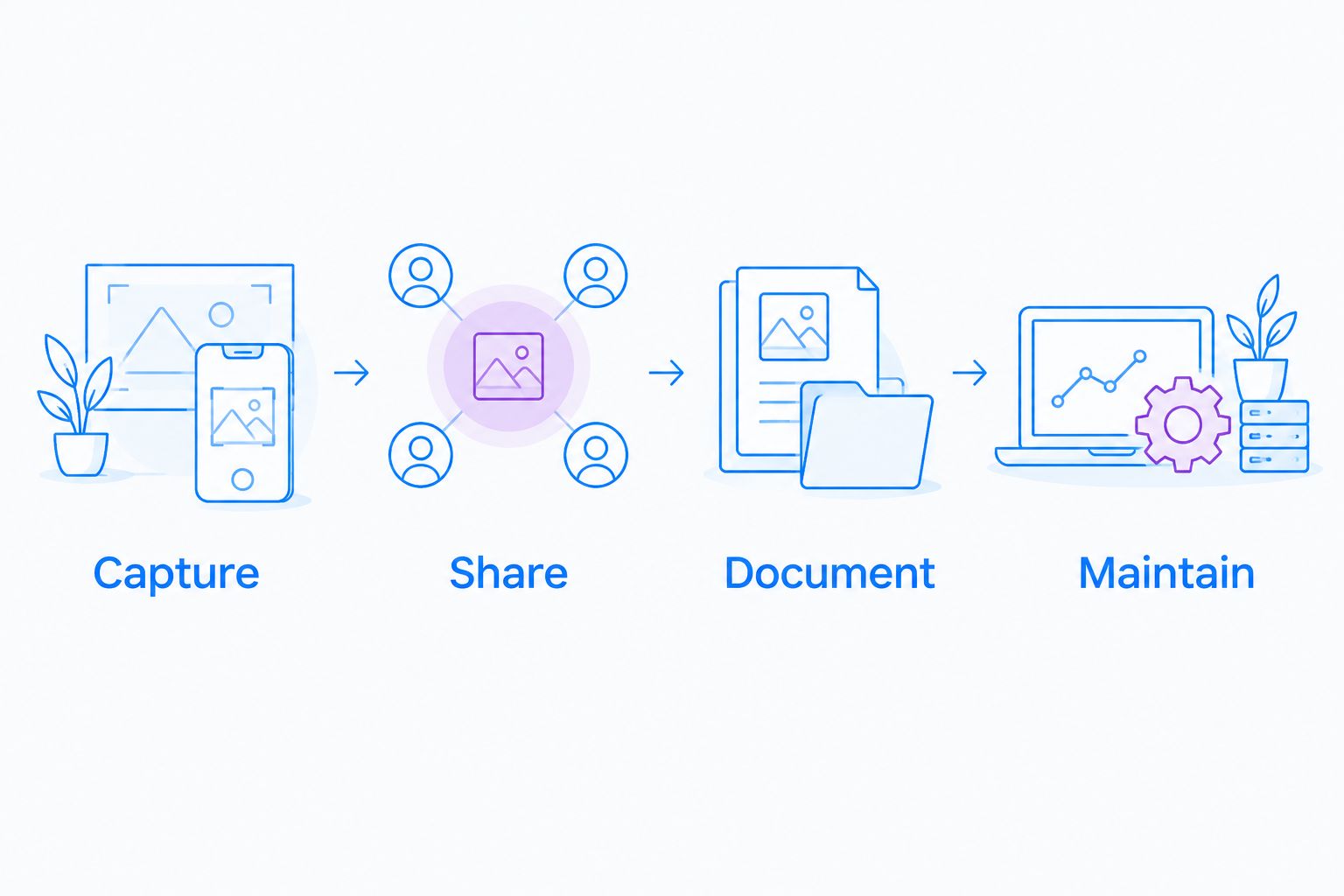
Use a small acceptance test to make the choice concrete:
- Capture: Record a 60-second explanation using synthetic content.
- Share: Have a colleague open it through the intended delivery route.
- Document: Convert the explanation into a 3-step procedure.
- Maintain: Change a step and identify everything that needs updating.
These are suggested test tasks, not product limits. Include a 5-minute troubleshooting walkthrough if longer explanations are part of your actual workload.
The winning tool is the one that completes your required task without leaving access, documentation, or maintenance unresolved. Keep a checklist of requirements and record a pass or fail for each.
Which screen recording software should you choose?
Choose Zight as the default for business teams combining screen recording, screenshots, and reusable guides. Choose Loom when video messages are the main output, OBS Studio when capture control leads, Camtasia when editing leads, and QuickTime Player when basic Mac recording is enough.
For your 2026 decision, identify the artifact the recipient needs: a screenshot, a watchable explanation, an edited lesson, or maintained instructions. Then buy for that outcome. Healthcare teams should complete the compliance and workflow checks before introducing protected information.
FAQ
What's the best screen recording software for business teams?
Zight is the strongest fit in this shortlist for business teams combining screenshots, screen recordings, and AI-powered guides. Choose a different specialist when broadcasting control or detailed video editing is the main requirement.
Is Loom better than a basic screen recorder?
Loom is better suited to video-message workflows than capture alone when sharing a watchable explanation is the main task. A basic recorder is sufficient when you only need a file and already have an approved distribution method.
What's the best screen recorder for edited training videos?
Camtasia is the training-video choice in this shortlist because it combines recording with timeline-based editing. Evaluate the effort required to correct and update a representative lesson.
Should I choose OBS Studio for support recordings?
Choose OBS Studio for support recordings when you need its scene, source, and audio controls. For straightforward replies, weigh that setup work against the simplicity of a capture-and-share workflow.
Can I use screen recording software in healthcare?
Healthcare use requires approval of the specific plan, contractual terms, features, and workflow. Verify BAA availability and restrictions through official vendor sources, and use synthetic content during evaluation.
Is QuickTime Player enough for recording my Mac screen?
QuickTime Player is enough for straightforward Mac screen capture when a video file is the required output. Evaluate sharing, access, and documentation separately if other people depend on the recording.
How should I test screen recording software before buying?
Test capture, recipient access, documentation, and maintenance using a representative task with synthetic content. Check current plan requirements against that task rather than judging the recorder in isolation.
One last thing
Test the explanation with someone who did not record it. Ask that person to complete the task without extra context, then note where they stop or ask a question.
A successful recording is not the finish line. A usable explanation is. If the recipient needs one setting, send a screenshot; if the recipient needs a sequence, show the sequence; if the team needs a repeatable process, maintain the instructions.