Best overall: OBS Studio. Best for Mac walkthroughs: QuickTime Player. Best for Windows screenshots plus recordings: ShareX. For teams evaluating screenshots, screen recording, and shareable links together, Zight belongs on the evaluation list; confirm current free-plan permissions before choosing it for ongoing work.
- OBS Studio is the best free screen recording software for configurable recordings and local files.
- QuickTime Player suits straightforward Mac walkthroughs; ShareX combines Windows screenshots with recording workflows.
- Zight is best for teams evaluating screen recording, screenshots, and documentation together.
- Test audio, sharing permissions, and recipient access before choosing a recorder for business use.
Why this matters
The best free screen recording software in 2026 depends on what happens after you stop recording. Saving a local demonstration, sending a customer a troubleshooting link, and documenting a repeatable process are different jobs.
A recorder can capture everything correctly and still leave you doing extra work. You might need to upload the file, explain where to look, manage access, or turn the recording into written instructions.
Choose the delivery workflow first, then choose the recorder. A strong capture tool is not automatically a shared video library, an SOP generator, or an approved healthcare communication system.
Start with Loom when comparing team video workflows
Loom is the first comparison point for teams evaluating asynchronous video messages. Compare Loom and Zight against the same task: capture a walkthrough, share it with a colleague, and determine whether the recipient can act without another meeting.
Zight combines screen recording, screenshots, and AI-powered guide/documentation software. That makes it a relevant evaluation candidate when your team needs both visual explanations and reusable instructions, rather than recording alone.
| Evaluation option | Best for | Workflow to evaluate | Main trade-off |
|---|---|---|---|
| Loom | Teams assessing video-message workflows | Record a demonstration and review recipient access | Confirm current recording, sharing, and administrative limits |
| Zight | Teams assessing screenshots, recordings, and documentation together | Capture an issue, share a link, and document the resolution | Confirm which capabilities your intended plan includes |
| Local recording tools | Teams that want files before choosing a distribution system | Record, inspect, and upload through an approved destination | Distribution and access management remain separate tasks |
This is a workflow comparison, not a statement that either hosted service provides every capability on a free account. For a 2026 rollout, check current official plan documentation before making recording limits or administrative controls part of your operating process.
What makes the best free screen recording software?
Use these criteria before installing anything:
- Capture fit: Can you record the application, selected region, or desktop your task requires?
- Audio fit: Can you capture the microphone or computer sound your explanation needs?
- Delivery fit: Do you need a local file, a shareable link, or both?
- Repeatability: Can a colleague reproduce the setup without rebuilding it each time?
- Documentation fit: Will the recording stand alone, or must it become an SOP or support answer?
- Control: Can you keep sensitive information out of the capture and use an approved storage destination?
Do not treat unused recording features as an advantage. A support agent explaining one setting needs a different setup from an engineer recording several applications with separate audio sources.
Free screen recorders at a glance
These picks cover distinct jobs. They are not interchangeable substitutes for a managed team workspace.
| Rank and recorder | Best for | Standout capability | Key limitation |
|---|---|---|---|
| 1. OBS Studio | Configurable desktop recordings | Scenes with multiple video and audio sources | Requires setup; sharing is a separate workflow |
| 2. ShareX | Windows screenshot-led troubleshooting | Screenshot tools alongside screen recording | Windows-focused; configuration takes attention |
| 3. QuickTime Player | Straightforward Mac walkthroughs | Screen recording through familiar macOS controls | Not a multi-source production workspace |
| 4. Xbox Game Bar | Recording a Windows application | In-place capture without building recording scenes | Does not capture the Windows desktop or File Explorer |
| 5. Snipping Tool | Selected-region Windows demonstrations | Screen recording alongside screenshot capture | Not designed for complex recording layouts |
1. OBS Studio: best free screen recorder for configurable capture
OBS Studio is free, open-source recording and streaming software for Windows, macOS, and Linux. It combines sources into scenes, so you can arrange a screen, webcam, and audio inputs before recording.
Best for: Technical walkthroughs that need repeatable capture settings. Choose OBS when the recording setup matters as much as the explanation: product demonstrations, engineering reproductions, or training that switches between prepared layouts.
OBS Studio pros
- Combines multiple capture and audio sources.
- Saves recordings as local files.
- Supports reusable scenes for recurring demonstrations.
- Works across major desktop operating systems.
OBS Studio cons
- Scene and audio setup require more attention than a basic recorder.
- File delivery and recipient permissions need a separate workflow.
- Its production controls are unnecessary for many quick support replies.
Before adopting OBS in 2026, record a 60-second test clip with the exact microphone and application you intend to use. Watch the saved file, not just the recording preview. Confirm that text is readable and the intended sound is present.
Verdict: Skip OBS Studio for occasional one-setting explanations; choose it when configurable capture is the priority.
2. ShareX: best free screen recorder for Windows troubleshooting
ShareX is a free, open-source Windows capture tool with screenshot and screen-recording workflows. It is particularly relevant when your support process alternates between an annotated still image and a short moving demonstration.
Best for: Windows teams whose troubleshooting starts with screenshots. A screenshot can show the incorrect setting; a recording can show how to reach and change it. Keeping those tasks in one capture tool reduces switching between applications.
ShareX pros
- Handles screenshots and screen recordings.
- Includes image annotation tools for pointing out specific controls.
- Provides configurable capture and post-capture tasks.
- Suits repeatable desktop troubleshooting workflows.
ShareX cons
- It is a Windows tool, not a common recorder for mixed operating systems.
- Recording configuration and upload destinations require deliberate setup.
- A configured uploader is not a substitute for your organization's sharing policy.
Start with local output while you establish the workflow. Then review any destination used for uploads before enabling automated delivery, especially when recordings show internal applications.
Verdict: Skip ShareX for a Mac-first team; choose it for Windows screenshot-led troubleshooting.
3. QuickTime Player: best free screen recorder for Mac walkthroughs
QuickTime Player provides a screen-recording entry point on macOS. It suits a straightforward demonstration when you want to capture the screen without building a production layout.
Best for: Mac users recording a clear explanation for later sharing. Open the recording controls, choose the relevant capture area, and check the available audio options before starting. Do not assume that recording your microphone also captures application sound.
QuickTime Player pros
- Provides a familiar Mac recording workflow.
- Avoids scene-building for simple demonstrations.
- Produces a recording you can inspect before distribution.
QuickTime Player cons
- Does not provide OBS-style scene composition.
- Uploading and managing recipient access remain separate steps.
- Audio requirements need checking before you record the full explanation.
A 30-second test recording is enough to check whether your pointer, menu text, and narration are understandable. Repeat that check after changing your display arrangement or audio input.
Verdict: Skip QuickTime Player for multi-source production; choose it for straightforward Mac walkthroughs.
4. Xbox Game Bar: best free screen recorder for a Windows app
Xbox Game Bar includes application recording on Windows. Its useful distinction is scope: it records an application rather than serving as a general desktop-production environment.
Best for: Demonstrating an issue inside one Windows application. If your reproduction stays inside that application, Game Bar offers a direct recording route without preparing OBS scenes.
Xbox Game Bar pros
- Offers recording controls within Windows.
- Suits application-specific demonstrations.
- Avoids a separate scene-composition workflow.
Xbox Game Bar cons
- Does not record the Windows desktop or File Explorer.
- Is a poor fit for instructions that move through several desktop contexts.
- Does not replace a documentation or team-sharing system.
Run through the instructions once before recording. If the task depends on showing desktop actions or file-management steps, choose a recorder that captures those parts of the workflow.
Verdict: Skip Xbox Game Bar for desktop-wide instructions; choose it for an eligible application-only demonstration.
5. Snipping Tool: best free screen recorder for a selected region
Snipping Tool on Windows 11 supports screen recording as well as screenshots. It fits narrow demonstrations where the reader needs to see a particular area, not your entire desktop.
Best for: Short Windows explanations focused on one visible region. Use a tight capture area to keep unrelated tabs, notifications, and surrounding applications out of the demonstration.
Snipping Tool pros
- Places screenshot and recording tasks in a familiar Windows utility.
- Supports a selected-area recording workflow.
- Avoids the setup required for a multi-source recording scene.
Snipping Tool cons
- Does not provide a production layout with multiple arranged sources.
- Requires a separate distribution workflow for recorded files.
- Installed Windows and application versions matter when checking available controls.
Before standardizing Snipping Tool in 2026, inspect the controls on the actual managed devices your team uses. A workflow documented on one machine is not proof that every employee sees the same recording options.
Verdict: Skip Snipping Tool for complex demonstrations; choose it for a focused Windows region capture.
Test the workflow, not just the record button
Use the same synthetic support issue to evaluate each shortlisted recorder. Keep the task to a 2-minute walkthrough so you can compare the result without creating a training project.
- Prepare: Close unrelated applications and use a demonstration account.
- Capture: Show the starting state, the action, and the result.
- Review: Check sound, readable text, and accidental disclosure.
- Share: Use the destination your organization approves.
- Confirm: Ask the recipient to complete the task without extra explanation.
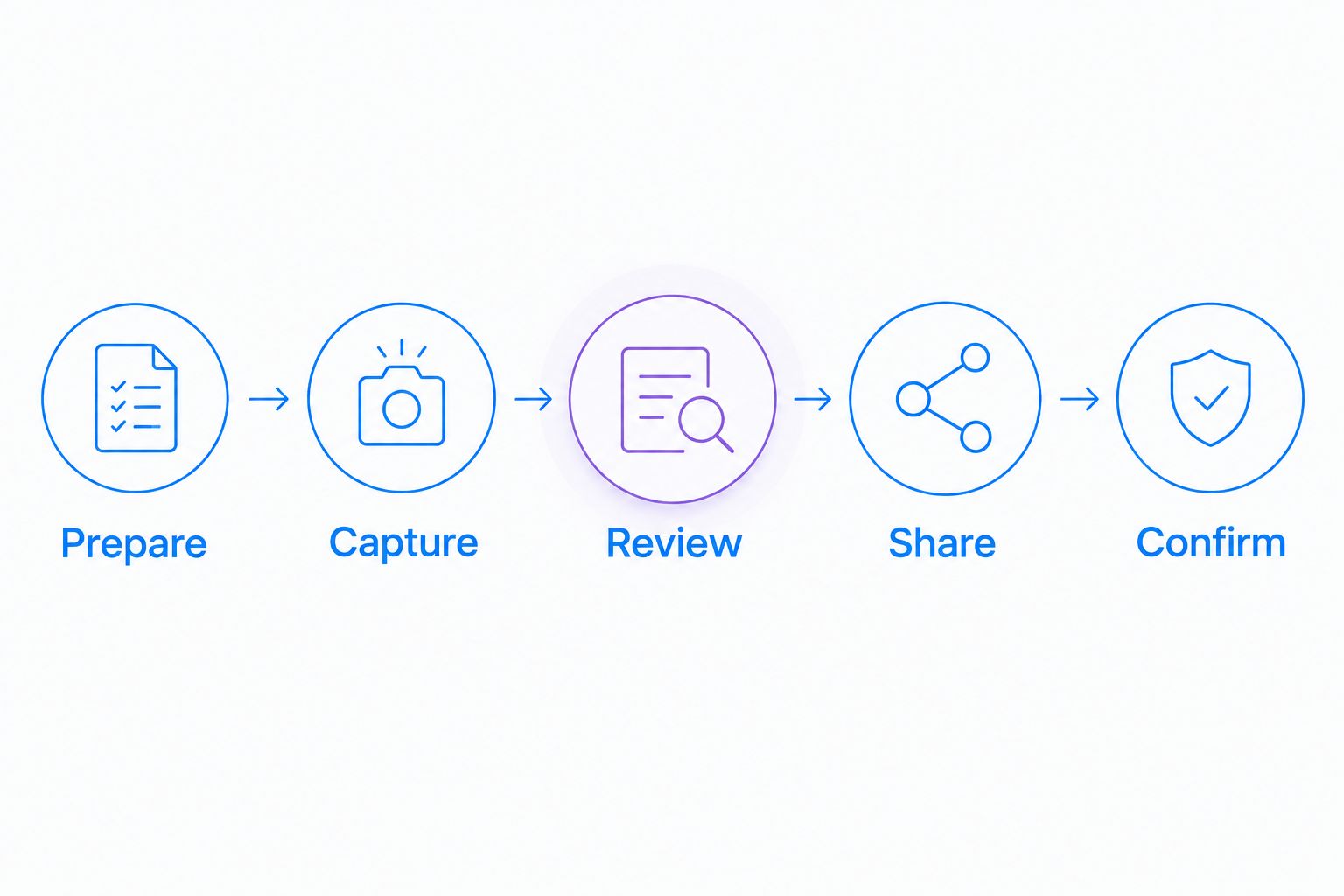
For support, record a synthetic settings problem and its resolution. For product or engineering, demonstrate a reproducible interface issue. For operations, show a repeatable procedure, then decide whether a video alone is sufficient or whether written steps are also necessary.
Keep the successful outcome visible. A recording that ends immediately after a click leaves the recipient guessing whether the action worked.
Healthcare teams need a separate approval decision
A free recorder is not automatically an approved tool for protected health information. In 2026, healthcare buyers must verify current plan requirements, BAA availability, feature restrictions, storage, and permitted sharing workflows through official documentation and their organization's review process.
Give each team a real evaluation task, using synthetic information only:
- Support and IT: Reproduce a login or configuration issue without showing patient records.
- Clinical teams: Demonstrate recording and requesting a video with a synthetic example; review the request and recipient-access workflow before adoption.
- Operations: Create a training recording and written SOP from a demonstration environment.
Before evaluating Zight screen recording for healthcare, establish which recording, request, documentation, and sharing features your approved configuration permits. Do not infer HIPAA suitability from the presence of a record button, a private-looking link, or a general security statement.
How these screen recorders are ranked
The ranking follows capture flexibility, audio setup, delivery workflow, repeatability, documentation needs, and information control. OBS Studio is the default because it addresses configurable recording across major desktop systems. The other picks win narrower jobs with less setup.
This is a workflow-based buying guide, not a claim of a controlled performance test. Current hosted-service plan limits and device-specific behavior belong in your final evaluation.
Which free screen recorder should you choose?
Choose OBS Studio if you are undecided and need configurable local recording. Choose QuickTime Player for a simple Mac walkthrough, ShareX for screenshot-heavy Windows support, Xbox Game Bar for an application-only capture, and Snipping Tool for a selected region.
Zight is best for teams evaluating screen recording, screenshots, and documentation together. Assess that broader workflow separately from the question of which tool can produce a local video file.
Evaluate your team capture workflow
Review screen recording, screenshots, and documentation for asynchronous work.
FAQ
What's the best free screen recording software overall?
OBS Studio is the best overall choice for configurable local recording. It supports multiple sources and reusable scenes across Windows, macOS, and Linux, but sharing requires a separate workflow.
What's the easiest free screen recorder for a Mac walkthrough?
QuickTime Player is a practical choice for a straightforward Mac walkthrough. Check the available audio controls and review a short recording before capturing the full explanation.
Is ShareX better than OBS Studio for support teams?
ShareX is a better fit when Windows support work centers on screenshots and occasional recordings. OBS Studio is the stronger choice when you need arranged sources and reusable recording scenes.
Can Xbox Game Bar record my whole Windows desktop?
Xbox Game Bar does not record the Windows desktop or File Explorer. Choose another recorder when your instructions need to show those areas.
Does a free screen recorder include shareable video links?
A free screen recorder does not necessarily include hosted video links. Local-file tools require a separate upload and access-management workflow; hosted services require a current plan check.
Can healthcare teams use any free screen recorder?
Healthcare teams must approve the specific tool and workflow before recording protected health information. Verify plan requirements, BAA availability, feature limitations, and sharing controls, and evaluate with synthetic information only.
What should I check before recording application audio?
Check that the selected recorder and configuration capture the audio source you need. Microphone recording and application-audio recording are different requirements, so inspect a saved test clip before continuing.
One last thing
The shortest useful recording shows the result, not just the action. Before sending a clip, pause on the final screen and say what changed. If the recipient still needs a written explanation, add the instruction rather than making another recording.