Best overall for team communication: Zight. Best for straightforward local capture: macOS Screenshot. Best for editing an existing screenshot: Preview. The best screenshot tools for Mac in 2026 depend on what happens after capture: sharing an explanation, saving evidence, or preparing an image for a document.
- Zight is the best screenshot tool for Mac teams sharing screenshots, recordings, and guides through links.
- macOS Screenshot is the best built-in choice for capturing a screen, window, or selection.
- Preview is best for marking up screenshots you already have, rather than managing team communication.
- Choose the best screenshot tools for Mac by testing capture, explanation, sharing, and sensitive-data handling.
Why this matters
Capturing an image is only part of the job. A support agent needs the recipient to understand the problem; an engineer needs reproducible context; an operations lead needs instructions someone can follow later.
Choose the screenshot tool around the handoff, not just the shortcut. A local file works for an attachment. A shareable link serves a different workflow, especially when the explanation also needs a recording or guide.
For your 2026 evaluation, separate those outcomes before comparing features. Otherwise, you end up choosing an image editor when your team actually needs a repeatable way to explain work.
What makes the best screenshot tools for Mac
Use these criteria to decide which workflow fits:
- Capture scope: Capture a selected area, a window, or the whole screen without including unrelated information.
- Explanation: Decide whether the recipient needs a still image, a moving demonstration, or written steps.
- Handoff: Match the output to the destination: a local file, an attachment, a document, or a shareable link.
- Editing: Identify whether the job needs simple markup or a separate image-editing step.
- Information handling: Review what appears in the image and who can receive the output, especially in healthcare.
A screenshot tool should reduce work across that sequence. A convenient capture shortcut does not compensate for an unclear explanation or the wrong sharing method.
Mac screenshot tools at a glance
These recommendations rank workflow fit, not measured speed. Each option has a different job.
| Tool | Best for | Standout capability | Key limitation |
|---|---|---|---|
| Zight | Team communication across screenshots, recordings, and guides | Shareable-link communication spanning still images and demonstrations | Adds a sharing and recipient-access decision to a simple capture task |
| macOS Screenshot | Direct capture to a local file | Built-in screen, window, and selection capture | Capture alone does not create a hosted explanation for recipients |
| Preview | Editing screenshots before adding them to documents | Built-in image markup and editing | A still-image editing workflow does not explain motion or manage a video walkthrough |
1. Zight: best screenshot tool for Mac team communication
Zight provides screenshot, screen recording, and AI-powered guide/documentation software for business teams. Support, sales, product, and engineering teams use it to communicate and troubleshoot asynchronously through shareable links.
Zight is best for Mac teams that need screenshots, recordings, and guides in one communication workflow. Choose it when taking the picture is only the beginning of the explanation.
Where it fits
Consider a support handoff involving a confusing settings page. A screenshot establishes which page the customer is viewing; a recording explains the sequence that produces the problem; documentation turns the eventual resolution into reusable instructions.
Those are different communication needs. Evaluating them together makes more sense than judging every tool only on how quickly it saves an image.
Zight pros
- Supports both screenshots and screen recordings.
- Provides AI-powered guide/documentation software alongside capture.
- Uses shareable links for asynchronous communication.
- Fits business workflows across support, sales, product, and engineering.
Zight cons
- A link-based handoff requires you to consider the recipient and sharing destination.
- Teams that only need an occasional local image have a simpler built-in capture option.
- Healthcare teams must verify applicable contractual and configuration requirements before using any workflow involving protected information.
Best for: Teams evaluating screenshot software as part of an ongoing communication and documentation process.
For a 2026 software decision, test a complete handoff rather than stopping after capture. Ask someone unfamiliar with the task to open the result and explain the next action.
Verdict: Buy for recurring team communication; skip a broader workflow purchase if you only need local captures.
2. macOS Screenshot: best for direct local capture
macOS Screenshot is the built-in capture utility on a Mac. It captures the entire screen, a selected window, or a selected portion, and its capture interface also includes screen-recording controls.
Choose it when you already know where the resulting file belongs. An email attachment, an issue report, or a document often needs an image rather than a separate communication workflow.
Where it fits
You need to attach a settings screenshot to an existing ticket. Capture the relevant area, inspect the image, and attach it where the conversation already lives.
The useful distinction is ownership of the handoff. Screenshot creates the capture; you handle the surrounding explanation and destination.
macOS Screenshot pros
- Is built into macOS.
- Offers full-screen, window, and selected-area capture.
- Provides keyboard shortcuts for common capture tasks.
- Keeps a local-file workflow straightforward.
macOS Screenshot cons
- Does not by itself turn a capture into a hosted, shareable explanation.
- Requires a separate destination for team discussion and reusable documentation.
- Still leaves you responsible for explaining what the recipient should notice.
Best for: Mac users who need direct capture and already have an attachment or document workflow.
Use Shift-Command-3 for the entire screen, Shift-Command-4 for a selection, and Shift-Command-5 for the capture controls. Check which displays and windows contain sensitive information before using full-screen capture.
These shortcuts remain useful in a 2026 team setup even when you adopt another tool. They give employees a common capture method without making every screenshot a software-selection decision.
Verdict: Buy into this workflow for local capture; skip it as your only solution when the handoff needs hosted explanations.
3. Preview: best for editing screenshots before documentation
Preview is the Mac's built-in application for viewing and editing images and PDFs. Its Markup tools let you add shapes, text, and other annotations to an image before using it elsewhere.
Preview belongs on this list because many screenshot tasks are really editing tasks. The image already exists; the job is to make the relevant detail clear.
Where it fits
An operations lead is preparing a written procedure and needs to identify a particular control. Open the screenshot in Preview, crop away irrelevant space, and add a clear annotation before inserting the image into the procedure.
This approach works when the action is visible in a still image. If understanding depends on movement or a sequence of changing screens, use a recording instead.
Preview pros
- Is built into macOS.
- Supports image cropping and Markup tools.
- Helps prepare screenshots for documents and attachments.
- Lets you work on an image that another capture tool created.
Preview cons
- Centers on editing files rather than managing a team communication handoff.
- Does not replace a screen recording when timing or movement matters.
- Requires you to place the edited image into its final destination.
Best for: People polishing screenshots for SOPs, internal instructions, and reports.
Treat annotations as explanation, not automatic protection for sensitive content. Prepare a clean source image whenever possible, and inspect the final exported file before sharing it.
Verdict: Buy into this workflow for still-image editing; skip it as a substitute for a recording or shared communication process.
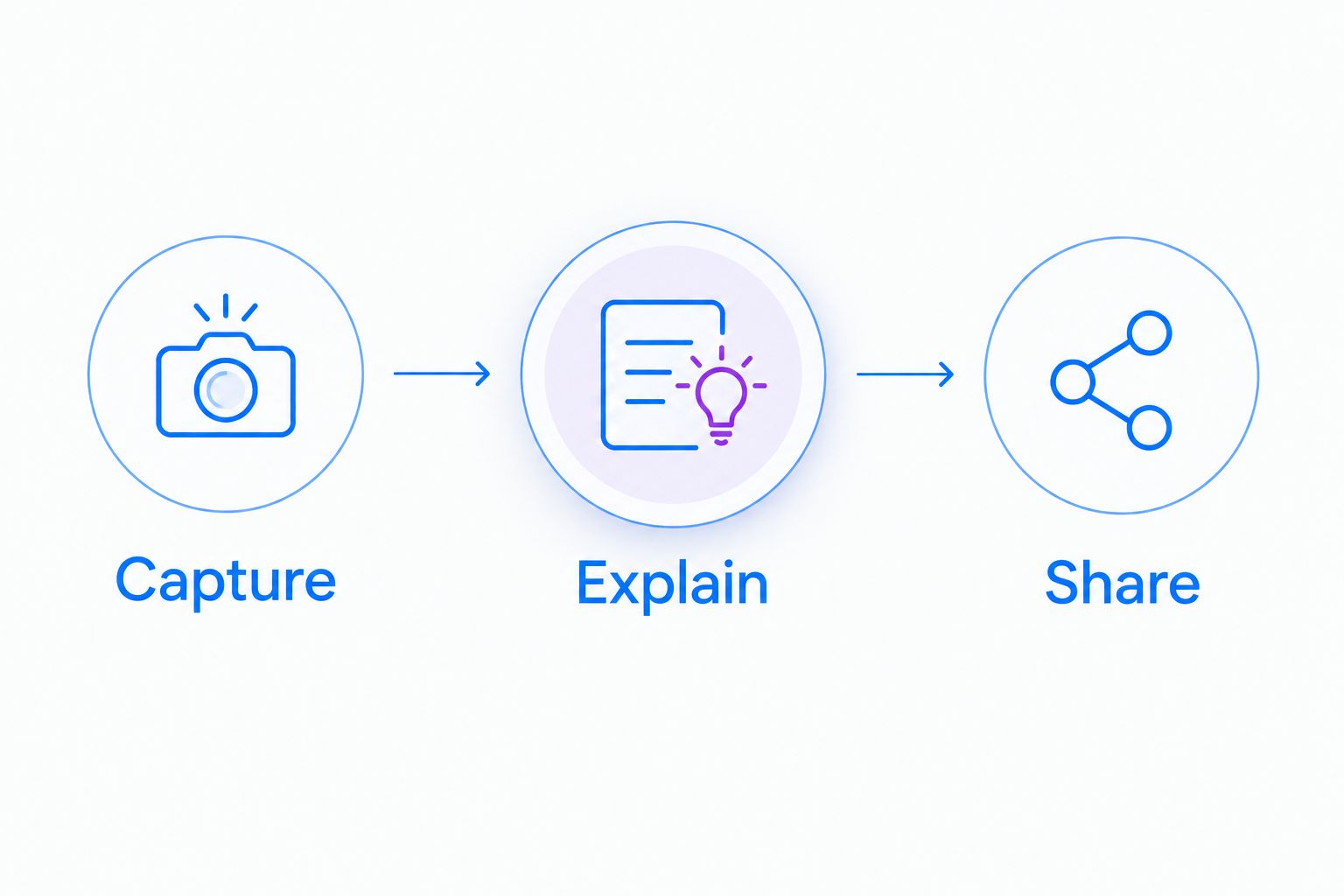
Test the complete workflow before choosing
Run a 3-task evaluation using synthetic information. Give each task a clear recipient and ask that person whether the output answers the question without another meeting.
Capture
Create 1 screenshot that identifies a setting or visible error. Check whether the image includes enough context without exposing unrelated windows, notifications, or account details.
Explain
Show a sequence that cannot be understood from a still image. Decide whether a recording explains it more clearly than several annotated screenshots.
Share
Deliver the result through the destination your team actually uses. Confirm that the recipient can access it and knows what to do next.
Record the friction you observe: extra exports, missing context, unclear instructions, or access problems. Do not turn those observations into performance claims until you have actually measured them.
For your 2026 shortlist, keep the tool that completes the recurring job with the fewest unnecessary handoffs. Do not reward a feature merely because it appears on a comparison page.
Healthcare teams: evaluate the workflow before recording
A screenshot tool is not automatically suitable for every healthcare task. Before capturing protected health information, obtain current official confirmation of the required plan, Business Associate Agreement availability, applicable features, configuration requirements, and limitations.
Do not treat this screenshot ranking as a HIPAA compliance determination. Use synthetic examples during evaluation, and have your organization's security and privacy owners approve the intended workflow.
Give these healthcare needs equal attention:
- Support and IT troubleshooting: Reproduce a login or application issue in a test environment. Evaluate the proposed support integration, recipient access, and handling of the resulting capture before connecting it to a live support process.
- Clinical team communication: Use a synthetic demonstration to evaluate both recording a workflow and requesting a video from another person. Confirm the requirements for each direction of the exchange rather than assuming approval for one covers both.
- Operations and training: Build a procedure from a demonstration containing no patient information. Review the screenshots, recording, and generated instructions before distributing the SOP.
No integration is assumed approved here. Require documentation for the exact integration and workflow your team intends to use.
This is a purchasing gate, not an optional check after rollout. A useful demonstration does not establish that a particular deployment meets your organization's obligations.
If your shortlist starts with Loom
Start your Loom-alternative evaluation by separating screenshot needs from recording needs. Ask whether your team primarily needs a marked-up still image, a narrated demonstration, reusable documentation, or a combination.
Then verify current capabilities and limitations in official documentation for both products. Check the exact capture, sharing, documentation, and administrative requirements that matter to your team; do not assume that two recording products handle every screenshot workflow the same way.
This guide recommends Zight for its stated combination of screenshots, recordings, guides, and shareable-link communication. It does not rank Loom's current feature set or claim feature parity.
How the ranking works
The ranking follows the criteria above: capture scope, explanation, handoff, editing, and information handling. It does not present laboratory testing, measured time savings, or an exhaustive market survey.
Team communication comes first because that job extends beyond creating an image. Local capture comes next, followed by editing an existing file. The order reflects those use cases—not a claim that one application wins every task.
Which screenshot tool should you choose?
Choose Zight when your Mac screenshot workflow regularly turns into a recording, a guide, or a shareable explanation. Choose macOS Screenshot when the deliverable is a local capture, and Preview when the image needs editing before inclusion in another document.
For your 2026 purchase, pick the recurring job first. Keep the built-in tools for straightforward tasks, and evaluate paid software against the communication work those tools leave you to complete.
FAQ
What's the best screenshot tool for Mac teams?
Zight is the strongest fit in this shortlist for teams that need screenshots, screen recordings, guides, and shareable-link communication. Evaluate the complete handoff with a real recipient before purchasing.
Does my Mac already have a screenshot tool?
Yes, macOS includes Screenshot for capturing the entire screen, a window, or a selected area. Press Shift-Command-5 to open its capture controls.
What's the best Mac tool for editing an existing screenshot?
Preview is the best fit in this shortlist for editing an existing screenshot. Use its cropping and Markup tools before adding the image to a document or attachment.
Should I send a screenshot or a screen recording?
Send a screenshot when the recipient needs to inspect a visible state; send a recording when the explanation depends on a sequence or movement. Remove unrelated information before either capture.
Is a screenshot tool automatically HIPAA compliant?
No, a screenshot tool does not make every plan, configuration, or workflow automatically HIPAA compliant. Verify current official plan requirements, BAA availability, feature limitations, and your organization's approval before handling protected health information.
What should I check when comparing Loom alternatives?
Check the exact capture, sharing, documentation, and administrative workflows your team needs. Verify current product details in official documentation rather than assuming recording tools have equivalent screenshot capabilities.
How should I compare screenshot software for paid team use?
Compare the entire capture-to-recipient workflow using synthetic information. Check whether the recipient can access the result, understand the issue, and take the next action without another explanation.
One last thing
Before taking a screenshot, write the action you want the recipient to take. If you cannot express that action clearly, another annotation will not fix the explanation.
Capture the evidence, then state the next step. That habit matters whether you use a local file, an edited image, or a shareable recording.