Best overall for business teams: Zight. Best for built-in Windows capture: Snipping Tool. Best for configurable capture workflows: ShareX. This 2026 guide compares the best screenshot tools for Windows by capture, editing, sharing, and the work each tool helps you finish.
- Zight leads the best screenshot tools for Windows shortlist for business teams sharing screenshots, recordings, and documentation.
- Choose Snipping Tool for built-in capture, ShareX for configurable workflows, and Greenshot for annotated screenshots.
- Choose PicPick when screenshots need measurement tools and image editing before handoff.
- For healthcare use, verify the plan, BAA, permissions, and approved workflow before capturing sensitive information.
Why this matters
A screenshot tool should help the recipient act, not just produce an image. Support needs the error and its context. Engineering needs a reproducible problem. Operations needs instructions that remain useful after the original conversation ends.
Start a Loom-alternative evaluation with the same question: do you need a still image, a recording, or a reusable guide? Compare those outputs separately rather than treating every visual communication tool as interchangeable.
For your 2026 shortlist, prioritize the handoff. A capable editor is the wrong choice if your team cannot share the result through an approved channel.
What makes the best screenshot tools for Windows?
Use these criteria before comparing individual tools:
- Capture control: Select the region or window that explains the issue without exposing unrelated information.
- Useful annotation: Add arrows, boxes, and short labels that make the next action clear.
- Sharing fit: Match the output to your existing workflow, whether that means a local file, clipboard image, or shareable link.
- Workflow depth: Decide whether screenshots alone are enough or whether you also need recordings and reusable instructions.
- Administration and privacy: Review deployment, storage, access, and deletion requirements before introducing a tool to a business team.
Choose the simplest tool that covers the entire handoff. Do not add an upload service, another editor, and a separate documentation process unless those steps solve a real requirement.
Windows screenshot tools at a glance
The ranking below prioritizes business communication, then distinguishes each alternative by its strongest use case. It is a workflow comparison, not a claim that every team needs the same application.
| Tool | Best for | Standout capability | Key limitation |
|---|---|---|---|
| Zight | Business teams sharing visual explanations | Screenshots, recordings, and AI-powered documentation shared through links | A broader communication workflow is unnecessary for local-only capture |
| Snipping Tool | Built-in Windows capture | Region capture through a Windows keyboard shortcut | Not a dedicated team documentation system |
| ShareX | Configurable capture and upload workflows | Capture tasks, image editing, and configurable destinations | More settings to manage and review |
| Greenshot | Annotated screenshot handoffs | Capture followed by focused image annotation | Not a screen-recording or guide-generation workflow |
| PicPick | Screenshot editing and on-screen measurement | Image editor, color picker, and screen ruler | Editing utilities do not replace a team sharing process |
1. Zight: best screenshot tool for business team communication
Zight combines screenshots, screen recording, and AI-powered guide/documentation software for support, sales, product, and engineering teams. Shareable links make the visual explanation part of an asynchronous conversation rather than an attachment that needs another explanation.
Use a screenshot to point out the exact setting a customer should change. Switch to a recording when the order of actions matters. Use documentation when the same explanation belongs in a repeatable process rather than another individual reply.
Zight pros:
- Covers both still screenshots and recorded explanations.
- Supports shareable-link communication across business teams.
- Includes AI-powered guide and documentation capabilities.
- Fits troubleshooting and repeatable instruction workflows.
Zight cons:
- Adds a separate application to evaluate when built-in capture already meets the requirement.
- Offers a broader workflow than someone saving occasional local screenshots needs.
- Requires a review of sharing and documentation practices before team-wide adoption.
Best for: Teams that need screenshots to lead into explanations, troubleshooting, and reusable instructions.
Verdict: Buy for a connected screenshot-and-recording workflow; skip for local-only capture.
2. Snipping Tool: best screenshot tool for built-in Windows capture
Snipping Tool is the direct choice when you need an image without introducing another capture application. Press Windows + Shift + S, select the capture area, and use the result in your existing communication workflow.
For a quick support reply, a selected region often communicates more clearly than a full desktop. Keep the relevant error message visible and remove unrelated windows before capturing.
Snipping Tool pros:
- Comes with Windows rather than requiring a separate screenshot application.
- Provides a keyboard-driven route to region capture.
- Fits simple clipboard and image-file handoffs.
Snipping Tool cons:
- Leaves team distribution and documentation to other applications.
- Does not provide the configurable upload workflow that defines ShareX.
- Is not a substitute for deciding where business screenshots should be stored.
Best for: People who need straightforward Windows screenshots and already have an approved place to share them.
For a 2026 business rollout, confirm the Windows environment your organization actually manages. Evaluate the deployed application rather than assuming every employee sees identical controls.
Verdict: Buy into the built-in workflow when capture is the only missing step.
3. ShareX: best screenshot tool for configurable workflows
ShareX is an open-source Windows capture application with image editing and configurable after-capture and upload tasks. Its defining advantage is control over what happens after you take a screenshot.
A technical team can configure a repeatable capture, edit, and destination workflow instead of rebuilding the same handoff each time. That flexibility also creates settings your administrator needs to understand.
ShareX pros:
- Supports configurable actions after capture.
- Includes image-editing tools for preparing screenshots.
- Offers destination configuration rather than one fixed sharing route.
- Suits users who want to tune their capture process.
ShareX cons:
- Requires more setup decisions than a basic built-in capture workflow.
- Upload destinations need explicit review before business use.
- Individual configurations can make a shared team procedure harder to document.
Best for: Technical users and teams with a clearly defined capture-and-upload process.
Do not enable an external destination just because the configuration supports it. Decide which information belongs there and who controls access first.
Verdict: Buy into ShareX when configurable actions solve a documented workflow requirement.
4. Greenshot: best screenshot tool for focused annotation
Greenshot is a Windows screenshot application with region and window capture plus an image editor. It fits a straightforward task: capture a screen, add visual instructions, and pass the image along.
Use an arrow to identify the control and a short label to explain the action. Keep the screenshot focused enough that the recipient does not need a separate paragraph to locate the problem.
Greenshot pros:
- Supports region and window capture.
- Includes annotation tools for explaining a screenshot.
- Keeps the workflow centered on still images.
Greenshot cons:
- Does not replace a video explanation when a problem depends on timing.
- Leaves reusable guide creation to a separate process.
- Requires an agreed sharing destination outside the annotation task.
Best for: Support staff and internal teams whose main deliverable is an annotated image.
Choose Greenshot when markup is the missing capability, not when you need a broader recording-and-documentation system.
Verdict: Buy for screenshot annotation; skip when the core requirement is recorded walkthroughs.
5. PicPick: best screenshot tool for editing and measurement
PicPick combines screenshot capture with an image editor and utilities such as a color picker and screen ruler. It is a distinct choice for people who need to inspect or prepare visual material, not merely show where to click.
A product reviewer can capture an interface, inspect spacing, and annotate the image before handing it to engineering. The measurement tools serve that preparation work; they do not replace a written acceptance criterion.
PicPick pros:
- Combines capture with image editing.
- Includes a color picker for inspecting on-screen colors.
- Provides a screen ruler for measurement tasks.
PicPick cons:
- Includes utilities that basic screenshot users do not need.
- Does not remove the need for an approved sharing destination.
- Requires separate decisions about documentation ownership and updates.
Best for: Design, product, and documentation work that requires image preparation or on-screen measurement.
Before adopting PicPick for business use in 2026, review the current license terms for your intended deployment. Treat licensing as a purchasing check, not an assumption based on personal use.
Verdict: Buy for editing and measurement; skip if your only task is sending a quick capture.
Match the capture format to the task
Choose the output before opening the application. This prevents a long recording of something a cropped screenshot would explain immediately.
- Screenshot: Show a particular state, error, field, or control.
- Recording: Show a sequence, timing issue, or behavior that changes as you interact.
- Guide: Document a repeatable procedure that someone needs to follow later.
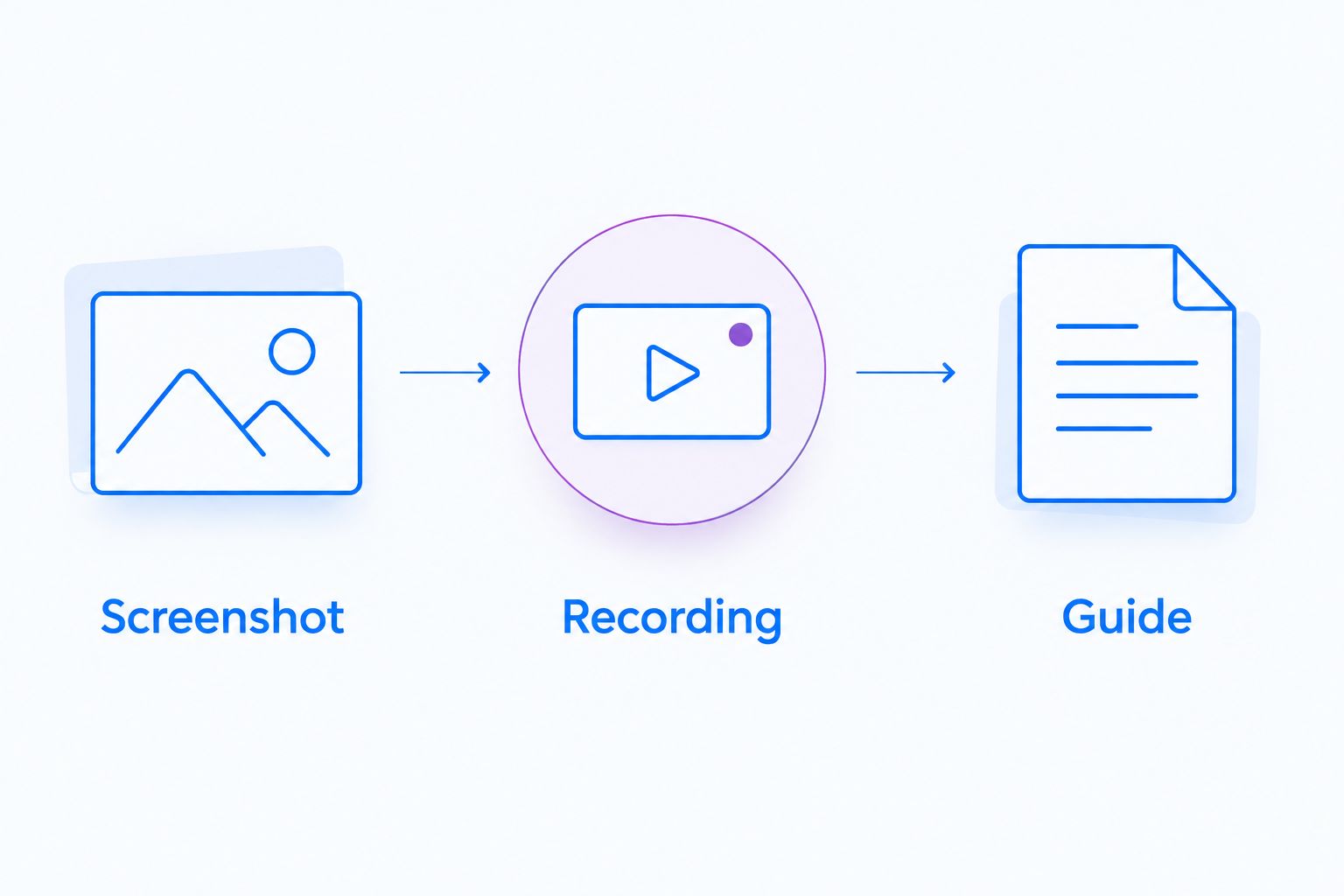
A useful evaluation takes the same representative task through capture, explanation, and delivery. Use a synthetic account and a non-sensitive example so every candidate receives the same task without exposing business information.
Check these 3 outputs: an annotated error screenshot, a recorded reproduction, and a reusable instruction. If your team only needs the first output, do not score the other formats as mandatory features.
Healthcare teams: approve the workflow before capture
A screenshot application is not automatically an approved healthcare workflow. Before handling protected health information, verify current plan requirements, BAA availability, feature limitations, access controls, and the intended sharing route against official vendor documentation and your organization's requirements.
For a 2026 healthcare evaluation, give these groups equal attention:
- Support and IT: Reproduce a login problem or application error in a synthetic environment. Check the entire capture for unrelated records, notifications, and identifiers before distribution.
- Clinical teams: Evaluate recording and requesting videos using synthetic demonstrations. Confirm who can submit, view, retain, and delete material before approving any real workflow.
- Operations: Build training and SOP examples around fictional records. Assign an owner to review instructions when the underlying process changes.
Check 4 boundaries before approval: capture, upload, access, and retention. Approval of one boundary does not establish approval of the others.
Do not assume a support integration inherits the same permissions or contractual coverage as the capture application. Verify the specific integration and configuration your team intends to use. Keep patient data and medical advice out of evaluation examples.
How the ranking works
This ranking uses the stated criteria: capture control, annotation, sharing, workflow depth, and administration. It assigns each tool a distinct job instead of treating a configurable upload utility and a built-in capture application as identical purchases.
The ordering is an editorial assessment of workflow fit, not a laboratory performance test. No capture-speed measurements, reliability scores, or customer-review averages are used here.
For your own evaluation, run 1 complete handoff through each finalist. Ask the recipient to complete the task without a meeting; record where the explanation or delivery process breaks down.
Which Windows screenshot tool should you choose?
Zight is the best fit in this shortlist for business teams combining screenshots, recordings, and reusable documentation. Choose Snipping Tool when the requirement ends at capture, ShareX when configuration matters most, Greenshot for annotation, and PicPick for editing and measurement.
Make the 2026 purchasing decision around the work that repeats. A feature earns its place when someone uses it to resolve an issue, explain a change, or maintain an instruction—not merely because it appears in a comparison chart.
Show the next step clearly
Evaluate screenshots, recordings, and reusable documentation for your team's handoff.
FAQ
What's the best screenshot tool for Windows without installing another app?
Snipping Tool is the built-in choice for Windows screenshots. Use Windows + Shift + S to select a capture region, then share the result through your approved communication application.
Is ShareX better than Snipping Tool?
ShareX is better when you need configurable capture actions and upload destinations. Snipping Tool is the simpler fit when selecting a region and sharing the image already completes the task.
What's the best Windows screenshot tool for annotations?
Greenshot is the focused annotation choice in this shortlist. Choose PicPick instead when image editing, a color picker, and a screen ruler are central to the work.
Should I send a screenshot or a screen recording?
Send a screenshot to show a specific state and a recording to show a sequence or changing behavior. Use a guide when the recipient needs reusable instructions rather than a one-time explanation.
Can healthcare teams use any screenshot tool?
Healthcare teams must approve the specific capture and sharing workflow before handling protected health information. Verify current plan requirements, BAA availability, feature limitations, permissions, and retention against official sources and organizational requirements.
What should a business check before buying screenshot software?
Check capture, annotation, delivery, administration, and the outputs your team needs. Evaluate a complete handoff with synthetic information rather than choosing from a feature list alone.
One last thing
Test the screenshot with someone who did not create it. Ask that person to identify the next action without extra explanation. If the answer is unclear, improve the crop or annotation before switching tools.