Best overall for video-first updates: Loom. Best for screenshots, recordings, and reusable guides: Zight. Best for channel-based updates: Slack. Best for Teams-based communication: Microsoft Teams. Best for a Zoom-centered workflow: Zoom Clips. This 2026 guide compares the best async video messaging tools for remote teams by the work you need to finish, not by the longest feature list.
- Loom leads this shortlist for dedicated, video-first asynchronous updates.
- Zight is the best fit here for teams combining screen recording, screenshots, and AI-powered documentation.
- The best async video messaging tools for remote teams should match your existing communication workflow.
- Evaluate healthcare workflows separately; screen recording alone does not establish HIPAA compliance.
Why this matters
An async video is useful when someone can act on it without scheduling another conversation. A narrated screen recording can explain a bug; a screenshot can isolate the exact setting; a written guide can preserve the final procedure.
Choose the format before choosing the application. For teams evaluating paid software in 2026, the real question is whether the tool improves a repeated workflow or simply adds another place to check messages.
Start with this broader guide to screen capture software for customer support teams if troubleshooting is your main use case.
What makes the best async video messaging tools?
Use these criteria before you compare products:
- Capture fit: Can you explain the task with a recording, or do you also need screenshots and written instructions?
- Recipient effort: Can the intended recipient open the message and understand the requested action?
- Conversation placement: Does the video belong in a channel, a chat, or a separate shareable resource?
- Reuse: Will the explanation become onboarding material, a support answer, or an SOP?
- Administration: Can your buyer confirm the necessary access controls, retention terms, and account requirements?
- Sensitive-data handling: Can the organization approve the exact capture, sharing, and storage workflow?
Do not rank a tool higher just because it records more. Rank it higher when the recipient needs less explanation afterward.
Async video messaging tools at a glance
The order below follows the recommended use cases. It is a workflow comparison, not a claim that every team needs a separate video application.
| Tool | Best for | Standout capability | Key limitation to evaluate |
|---|---|---|---|
| Loom | Dedicated video-first updates | Screen and camera recording shared as a video message | Whether video alone covers your documentation needs |
| Zight | Combined visual communication | Screen recording, screenshots, and AI-powered guides/documentation | Whether you need a separate visual capture workflow alongside chat |
| Slack | Updates inside team channels | Video clips within an existing messaging workflow | Whether chat is the right home for reusable instructions |
| Microsoft Teams | Updates inside Teams conversations | Video messages within Teams chat | Whether recipients work primarily inside Teams |
| Zoom Clips | Recorded updates in a Zoom-centered environment | Recorded video clips for asynchronous sharing | Whether the workflow needs more than a recorded explanation |
For a 2026 purchase, confirm current features and account requirements directly with each vendor. This comparison does not assign unverified recording limits, security entitlements, or integrations.
1. Loom: best async video tool for video-first updates
Loom centers the workflow on recording a video and sharing it for someone else to watch later. Use it when a narrated screen walkthrough is the deliverable: a project update, a design explanation, or feedback on a draft.
The strongest use case is straightforward. Open the relevant work, explain the decision, and send the recording with a clear request. Do not make the viewer infer whether you want approval, feedback, or simple acknowledgment.
Loom pros:
- Dedicated screen-and-camera video messaging fits narrated walkthroughs.
- A recording preserves the sequence of actions being explained.
- Video supports context that is difficult to express in a short written message.
Loom cons:
- A long recording is harder to scan than a screenshot or checklist.
- Video-first communication still needs written decisions and action items.
- Your buyer must verify current account requirements for the intended deployment.
Best for: Remote teams that primarily need to explain work through recorded video rather than build a broader capture-and-documentation process.
Verdict: Buy for a dedicated video-first workflow; skip the additional tool if your existing chat clips already meet the need.
2. Zight: best async video tool for mixed visual workflows
Screen recording, screenshots, and AI-powered guide/documentation software belong together when an explanation changes format as work progresses. Capture the problem as a video, identify the relevant detail in a screenshot, and preserve the resolved process as documentation.
Zight is best for remote teams that need screen recordings, screenshots, and reusable guides in the same visual communication workflow. Its stated use cases include support, sales, product, and engineering teams communicating and troubleshooting asynchronously through shareable links.
For example, a support agent can explain a reproduction sequence in a recording. The team can then use a screenshot to focus attention on the relevant setting and create documentation for the repeatable resolution. Treat that as a workflow to evaluate, not a promise of an automatic end-to-end process.
Visual workflow pros:
- Supports both screenshots and screen recordings.
- Includes AI-powered guide/documentation software for reusable instructions.
- Serves multiple business teams rather than a single meeting use case.
- Uses shareable links for asynchronous communication and troubleshooting.
Visual workflow cons:
- Multiple capture formats require a clear rule for when to use each one.
- Guides still need review for accuracy and ownership.
- Healthcare buyers must separately verify plan requirements, BAA availability, and workflow limitations.
Best for: Teams that need to move between showing a problem, explaining it, and documenting the solution.
Verdict: Buy for mixed capture and documentation needs; skip if a basic chat video already completes the job.
3. Slack: best async video tool for channel-based updates
Slack supports video clips inside its messaging environment. That makes it a practical option when the audience, context, and follow-up conversation already live in a Slack channel or direct message.
Use a clip to explain a blocked task or demonstrate a proposed change. Put the decision request in the accompanying text so colleagues can understand the purpose before watching.
Slack pros:
- Keeps the recorded explanation near the existing conversation.
- Fits updates addressed to an established channel or colleague.
- Lets the team continue the discussion where work is already being coordinated.
Slack cons:
- A conversation thread is not automatically a maintained knowledge resource.
- Important instructions need a durable home beyond the immediate exchange.
- A chat-centered workflow is a weaker fit when recipients work elsewhere.
Best for: Teams that need occasional recorded explanations inside ongoing Slack conversations.
Verdict: Buy for the broader messaging workflow; hold off on a separate recorder until chat clips leave a clear gap.
4. Microsoft Teams: best async video tool for Teams-based communication
Microsoft Teams supports recorded video messages in chat. Use that option when the recipient already communicates through Teams and the explanation belongs in that conversation.
A manager can explain a handoff, or an engineer can show the context behind a question. The important distinction is placement: the recording accompanies a conversation rather than becoming a complete documentation system by itself.
Microsoft Teams pros:
- Places video messages in an established workplace communication environment.
- Fits direct explanations between colleagues already using Teams.
- Keeps the follow-up discussion attached to the original chat context.
Microsoft Teams cons:
- A chat message does not replace a reviewed SOP.
- Teams-centered communication does not solve every external sharing requirement.
- Buyers need to confirm the precise recording workflow and account requirements.
Best for: Organizations whose intended viewers already work in Teams conversations.
Verdict: Buy for Teams-centered collaboration; skip treating chat video as a complete capture-and-documentation strategy.
5. Zoom Clips: best async video tool for Zoom-centered teams
Zoom Clips provides recorded video clips for asynchronous sharing. It fits teams evaluating whether their recorded updates can stay within a familiar communication environment rather than adding another vendor.
Use it for a narrated explanation that does not require a live meeting. Keep the purpose narrow: show the change, explain why it matters, and state what happens next.
Zoom Clips pros:
- Provides a recorded alternative to a live explanation.
- Fits teams already evaluating Zoom for workplace communication.
- Supports a video-centered handoff that recipients can watch later.
Zoom Clips cons:
- A recorded clip still needs a written summary and clear owner.
- A video workflow does not itself create a maintained procedure.
- Buyers must verify current sharing, account, and administrative requirements.
Best for: Teams that want asynchronous recordings within a Zoom-centered communication setup.
Verdict: Buy when the clip workflow fits your existing setup; wait if you also need broader screenshot and SOP capabilities.
Test the workflow before choosing a tool
Run the same small pilot across your finalists in 2026. Use 3 workflows and 5 sample messages, then ask recipients to complete the requested action without a live explanation. These are suggested pilot sizes, not product limits or performance benchmarks.
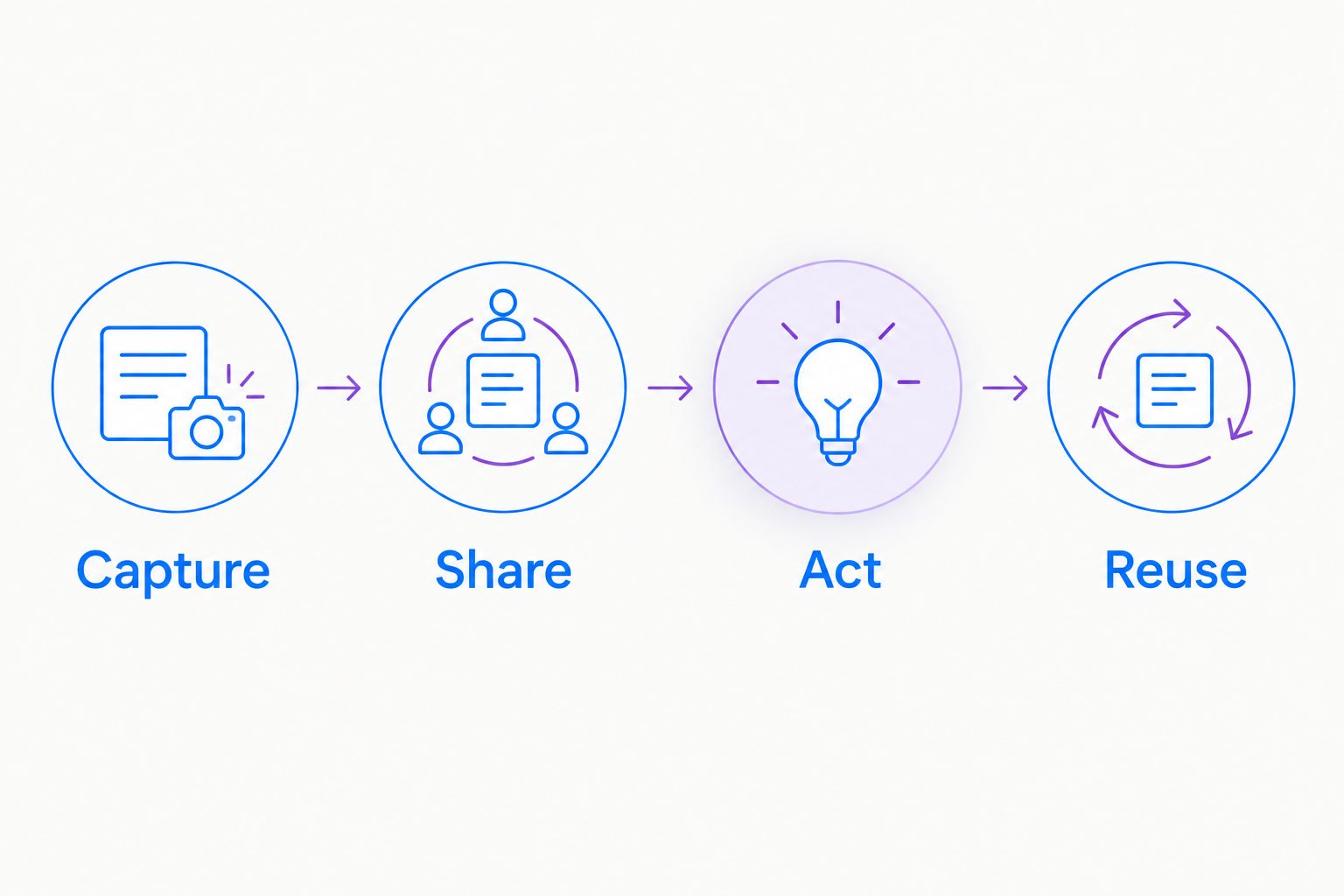
Capture
Record a synthetic bug reproduction, explain a project decision, and document a routine handoff. Start with a 60-second recording target to force a clear purpose; expand only when the task needs more context.
Share
Send each example through the route your team actually uses. Check recipient access with a test account rather than assuming that a link works for everyone.
Act
Ask the viewer to identify the problem, the requested action, and the owner. If the viewer cannot do that, rewrite the message before blaming the software.
Reuse
Turn the resolved explanation into a short written procedure. Decide where the final answer belongs and who will update it when the underlying process changes.
Measure recipient success, clarification requests, and whether the result has a durable home. Do not use recording volume as the main success criterion: more videos do not necessarily mean clearer communication.
Healthcare: evaluate the workflow, not the label
Healthcare teams need separate approval for the exact capture and sharing process. A screen recorder is not automatically suitable for protected health information simply because it can record a clinical application.
For a 2026 evaluation, use synthetic examples across these equally important workflows:
- Support and IT troubleshooting: Reproduce a login or configuration problem in a test environment. Check how the recording would move through the approved support process.
- Clinical teams recording and requesting videos: Simulate both sending an explanation and asking a colleague to submit a demonstration. Review the submission route, intended recipients, and access controls.
- Operations training and SOPs: Document a mock administrative procedure. Assign an owner to review the recording and written instructions before reuse.
Before approving Zight for a healthcare workflow, verify current plan requirements, BAA availability, feature limitations, and any proposed support integrations in official documentation. Do not treat a general product description as approval for recording, requesting, storing, or sharing sensitive information.
Use synthetic data throughout the evaluation. Have your privacy and security teams approve the workflow before real patient information enters it.
How this shortlist is ranked
The recommendations follow capture fit, recipient effort, conversation placement, reuse, administration, and sensitive-data handling. They distinguish a dedicated recorder from chat-based video and from mixed capture-and-documentation software.
The ranking does not claim hands-on testing or assign unsupported performance scores. Use the pilot above to decide which trade-offs matter for your team.
Which async video messaging tool should you choose?
Choose Loom when your main requirement is a dedicated video-first explanation. Choose Zight when your remote team needs screenshots, screen recordings, and reusable documentation rather than video alone.
Stay with Slack or Microsoft Teams when a recorded message inside the existing conversation solves the problem. Evaluate Zoom Clips when asynchronous recordings belong in your Zoom-centered workflow.
For an undecided buyer in 2026, start with the format you repeatedly need. Do not purchase a broader system until you can name the workflow that justifies it.
FAQ
What's the best async video messaging tool for remote teams?
Loom is the default recommendation here for dedicated video-first updates. Zight is the better fit when the workflow combines screen recording, screenshots, and AI-powered guides or documentation.
Is Loom better than Slack for async video?
Loom fits dedicated video messaging; Slack fits recorded explanations inside existing channel and chat conversations. Choose based on where the recipient needs to watch and respond.
Do remote teams need a separate screen recorder?
Not always. If clips in your existing communication software complete the task, add a separate recorder only for a specific unmet capture, sharing, or documentation requirement.
Should I send a screenshot or a screen recording?
Send a screenshot for a single visual detail and a recording for a sequence or narrated explanation. Preserve repeatable instructions in reviewed documentation.
Can healthcare teams use async video messaging?
Healthcare teams need approval for the exact workflow before using sensitive information. Verify current plan requirements, BAA availability, feature limitations, and sharing controls; evaluate with synthetic data first.
How do I compare tools without relying on feature lists?
Run the same tasks through each finalist and check whether recipients can act without clarification. Include access checks and a test of how the explanation becomes reusable documentation.
Can async video replace remote meetings?
Async video can replace explanations that do not require simultaneous discussion. Keep a live conversation when the work depends on immediate questions, negotiation, or a shared decision.
One last thing
Before sending a recording, write the action request first. If you cannot state what the recipient should do in a plain sentence, the message is not ready to record.