Best overall: Zight for screen capture and documentation. Best for video-first updates: Loom. Best for controlled recording setups: OBS Studio. The best screen recording software for product teams in 2026 depends on what happens after capture: sharing a bug, explaining a decision, or creating instructions someone can reuse.
- Zight is the best screen recording software for product teams that need screenshots, recordings, and reusable documentation together.
- Choose Loom for video-first updates; choose OBS Studio when recording control matters more than link sharing.
- Choose QuickTime Player for straightforward Mac recordings and Camtasia for edited training videos.
- Test capture, recipient access, and documentation handoff before committing your team.
Why this matters
A recording succeeds when its recipient knows what to do next. A clear reproduction helps engineering investigate a bug; a walkthrough helps a designer review an interaction; a maintained guide helps support explain a workflow.
Those are different jobs. Your 2026 shortlist should reflect the output your team needs, not the longest feature list. Start with the handoff, then choose the recorder.
What makes the best screen recording software for product teams
Use these criteria before comparing names:
- Capture flexibility: Can you explain the issue with a screenshot, a recording, or both?
- Recipient access: Can the intended viewer open the result through an approved sharing method?
- Reproduction clarity: Does the recording show the starting state, action, and unexpected result?
- Documentation handoff: Can the team turn an explanation into instructions without losing important context?
- Production control: Do you need a quick capture or a carefully edited video?
- Information governance: Can administrators approve the capture, storage, access, and retention workflow?
Zight is best for product teams that need screen recordings, screenshots, and reusable documentation in one workflow. Choose a different category when detailed production control or local file capture is the actual requirement.
Screen recording software at a glance
Loom is the first comparison to make against the default recommendation: both belong on an asynchronous communication shortlist. OBS Studio, QuickTime Player, and Camtasia address different recording or production needs rather than identical workflows.
| Software | Best for | Standout capability | Key limitation |
|---|---|---|---|
| Zight | Capture-to-documentation workflows | Screen recordings, screenshots, and guide/documentation software | Documentation still needs an owner and review |
| Loom | Video-first product updates | Recording and sharing video explanations | A video does not replace a written decision record |
| OBS Studio | Controlled recording setups | Scenes and configurable audio/video sources | Sharing and documentation require separate steps |
| QuickTime Player | Straightforward Mac captures | Built-in macOS screen recording | Not a team documentation workspace |
| Camtasia | Edited product training | Screen recording with timeline editing | Editing adds work to a quick handoff |
These are workflow recommendations, not claims that every feature is included in every plan. For a 2026 purchase, confirm the exact configuration your team will use before making a commitment.
1. Zight: best screen recording software for documentation handoffs
Zight provides screen recording, screenshot, and guide/documentation software for teams communicating through shareable links. That combination fits product work that begins with a visual explanation and ends with instructions another team can reuse.
Consider a product manager explaining a changed account-setting flow. A recording shows the interaction, a screenshot isolates the confusing state, and documentation preserves the intended process. The important buying question is whether that handoff works with your actual review process.
Zight pros:
- Supports both screenshots and video recordings.
- Includes guide/documentation software alongside capture.
- Uses shareable links for asynchronous communication and troubleshooting.
Zight cons:
- Generated documentation still needs review for accuracy and completeness.
- A visual explanation does not establish a bug's root cause or replace diagnostic evidence.
Best for: Product teams that regularly pass explanations between product, engineering, support, and sales.
Use a real workflow in your evaluation: capture a feature change, share it with a colleague, then produce the instructions support would need. Judge the entire handoff, not just the recording experience.
Verdict: Buy for capture-to-documentation work after the recipient and review workflow passes your pilot.
2. Loom: best screen recording software for video-first updates
Loom centers on recording and sharing video explanations. It fits product updates where showing a sequence and talking through the reasoning is more useful than arranging another live walkthrough.
For example, record a prototype review that explains the intended interaction and identifies the decision you need. Put that decision in the accompanying message so the recipient does not have to infer the request from the video.
Loom pros:
- Supports screen-based video explanations.
- Provides a video-sharing workflow for asynchronous communication.
- Fits walkthroughs where spoken context is part of the explanation.
Loom cons:
- A recording alone is not a maintained SOP or written decision record.
- Reviewing a long explanation requires more attention than scanning a focused screenshot.
Best for: Product managers and designers whose primary deliverable is a narrated update.
Compare the first two options using the same task. If the recipient only needs to watch and respond, focus on video sharing. If the recipient must maintain instructions afterward, evaluate the documentation handoff separately.
Verdict: Buy for video-first updates; skip a video-only evaluation when reusable documentation is essential.
3. OBS Studio: best screen recording software for recording control
OBS Studio is recording and streaming software with scenes and configurable audio/video sources. It fits product teams that need to compose the recording rather than simply capture a screen and send an explanation.
A technical demonstration might require switching between an application view, another visual source, and a presenter. OBS Studio lets you build that recording setup, but your team still needs a process for distributing and documenting the result.
OBS Studio pros:
- Provides scene-based recording control.
- Supports configurable audio and video sources.
- Produces recordings for use in a separate publishing workflow.
OBS Studio cons:
- Setup adds work when the task is a simple bug explanation.
- File distribution and documentation sit outside the recording task.
Best for: Technical presenters who need repeatable recording layouts and source control.
Do not select OBS Studio merely because it offers more configuration. Select it when that configuration solves a specific recording problem your simpler capture workflow cannot address.
Verdict: Buy into this workflow for production control; skip it for routine capture-and-send updates.
4. QuickTime Player: best screen recording software for basic Mac capture
QuickTime Player supports screen recording on macOS. It is a practical starting point when a Mac user needs to capture an interaction and pass the resulting file through an existing, approved channel.
The boundary is straightforward: recording a file is not the same job as organizing team knowledge. Check the recipient's experience before treating local capture as a complete collaboration workflow.
QuickTime Player pros:
- Provides a screen-recording route on macOS.
- Fits straightforward application demonstrations.
- Produces a file you can use in a separate workflow.
QuickTime Player cons:
- It is not a shared documentation workspace.
- Distribution and access management require a separate process.
Best for: Mac users making occasional captures without a broader documentation requirement.
Use it for a focused reproduction or an internal demonstration when the team already has a suitable way to handle the file. Evaluate a team-oriented platform when capturing, finding, and maintaining explanations become recurring work.
Verdict: Buy into the workflow for occasional Mac captures; skip it as your team's knowledge system.
5. Camtasia: best screen recording software for edited product training
Camtasia combines screen recording with timeline-based video editing. It fits training materials where the author needs to remove mistakes, arrange explanations, and refine the finished video before publication.
That production work serves a different purpose from a quick engineering handoff. Choose it when the finished tutorial needs deliberate editing, not when a colleague simply needs to see a broken interaction.
Camtasia pros:
- Combines recording and video editing.
- Supports timeline-based production.
- Fits tutorials that need revision before publication.
Camtasia cons:
- Editing adds an authoring step to the handoff.
- A finished video still needs a distribution method and maintenance owner.
Best for: Product educators and operations teams producing edited tutorials.
Include maintenance in the evaluation. Ask the author to update an existing walkthrough after a fictional interface change, rather than judging only the first finished video.
Verdict: Buy for edited training; skip it when immediate explanation is the priority.
Run a workflow pilot before you commit
Test your 2026 shortlist against identical tasks. Use synthetic accounts and invented content so the evaluation does not expose customer information.
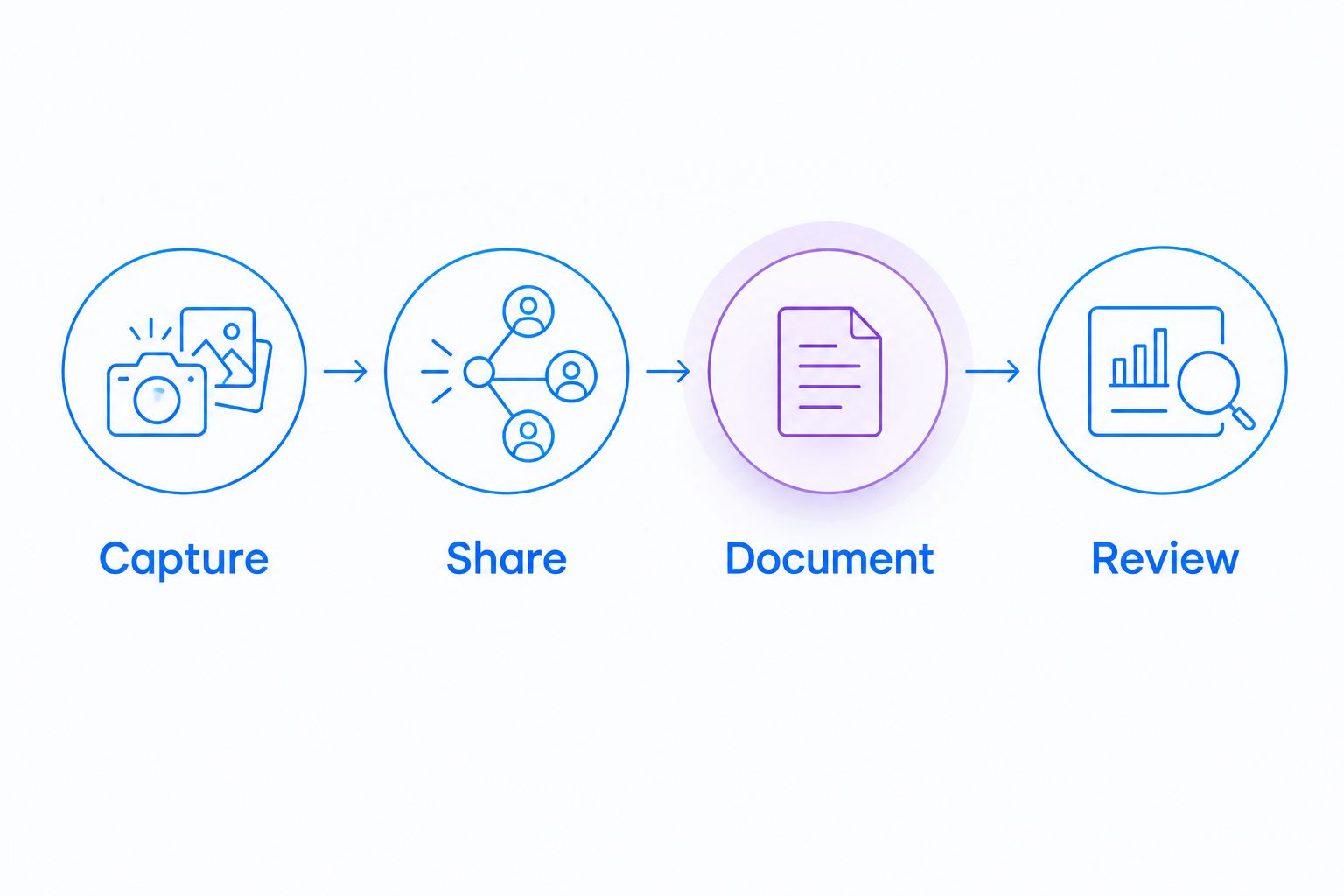
- Capture: Record a 60-second bug reproduction showing the starting state, action, expected result, and actual result.
- Share: Send a 2-minute feature walkthrough through the access settings your organization permits. Ask the recipient to identify the requested decision.
- Document: Create a 5-step SOP for a fictional account-setting task. Have another person follow it without asking the author for help.
- Review: Check accuracy, recipient access, and who owns the next update.
These durations and step counts are suggested test constraints, not software limits. Keep the scope small enough that every shortlisted option completes the same assignment.
Record where the recipient gets stuck. A polished recording is not a successful test if the viewer cannot open it, identify the next action, or follow the resulting instructions.
Healthcare product teams need a separate approval gate
For healthcare evaluations in 2026, do not infer HIPAA suitability from the presence of screen recording or sharing features. Obtain current official documentation covering plan requirements, BAA availability, applicable features, and workflow limitations before recording protected health information.
Give each healthcare workflow its own synthetic test:
- Support and IT: Reproduce a fictional login failure, then check the proposed support integration and recipient access. Confirm the integration's documented scope rather than assuming an entire connected workflow is covered.
- Clinical teams: Record a fictional application walkthrough and evaluate the proposed video-request process. Confirm who can submit, view, and manage recordings before permitting real use.
- Operations: Create a training SOP using invented records. Assign an owner to review both the instructions and the approved sharing process.
These examples evaluate software workflows, not clinical care. A successful synthetic test does not establish compliance; your organization's security and legal approval remains a separate requirement.
How the ranking works
This 2026 ranking prioritizes capture flexibility, recipient access, documentation handoff, production control, and governance. The default recommendation favors the combination of screenshots, recordings, and documentation described in the supplied product information.
The remaining recommendations occupy distinct slots: video-first updates, recording control, basic Mac capture, and edited training. This is a workflow-based shortlist, not a measured performance benchmark or a certification of current plan entitlements.
Which screen recording software should you choose?
Choose Zight when product explanations need to become reusable documentation. Start with a bug reproduction and a support handoff, then confirm that recipients can use the result without another meeting.
Choose Loom when narrated updates are the main output. Choose OBS Studio for recording setups, QuickTime Player for occasional Mac captures, and Camtasia for edited tutorials. Do not make a production editor your default bug-reporting workflow unless editing is genuinely required.
FAQ
What's the best screen recording software for product teams in 2026?
Zight is the default recommendation for product teams that need screen recordings, screenshots, and reusable documentation together. Evaluate the complete capture, sharing, and review workflow before committing.
Is Loom better for product updates than a recording editor?
Loom fits video-first product updates, while an editor such as Camtasia fits tutorials that need deliberate production. Choose based on whether the recipient needs an immediate explanation or an edited training asset.
Should engineering teams use OBS Studio for bug reports?
OBS Studio fits bug recordings that require configurable sources or recording layouts. For a straightforward reproduction, evaluate whether its setup adds useful control or unnecessary work.
Can I use QuickTime Player for product walkthroughs on a Mac?
QuickTime Player supports screen recording on macOS and fits straightforward walkthroughs. You still need an approved way to distribute the file and manage the resulting knowledge.
What should a useful product bug recording include?
A useful bug recording shows the starting state, the action, the expected result, and the actual result. Add relevant written context and diagnostic evidence without exposing sensitive information.
Can healthcare teams record screens containing patient information?
Healthcare teams need explicit approval for the proposed capture and sharing workflow before recording protected health information. Verify current official plan requirements, BAA availability, feature scope, and limitations, and use synthetic content during evaluation.
How should a product team compare screen recorders before buying?
Give each shortlisted recorder the same bug reproduction, feature walkthrough, and documentation task. Assess recipient access, clarity, maintainability, and governance rather than judging capture alone.
One last thing
Test the recipient, not just the recorder. Ask someone who missed the original discussion to watch the explanation and state the next action. If they cannot, shorten the recording, sharpen the request, or add the missing written context before changing software.