Best overall: Zight. Best for video-first explanations: Loom. Best for screenshot-led instructions: Snagit. Best for technical recording control: OBS Studio. Best for Windows capture automation: ShareX. This 2026 guide matches screen capture software to the support work you need to finish: explain a fix, reproduce a bug, request evidence, or document a repeatable process.
- Zight is the best screen capture software for customer support teams combining screenshots, recordings, and AI-powered documentation.
- Loom fits video-first explanations; Snagit fits screenshot-led instructions.
- OBS Studio fits technical recording control; ShareX fits Windows capture automation.
- Healthcare teams must verify contractual coverage, approved settings, and sharing controls before capturing patient information.
Why this matters
A screenshot answers where to click. A recording shows what happens between clicks. A written guide turns a resolved ticket into something another agent can reuse.
The wrong capture format creates more work. A long recording makes a customer search for one setting; a screenshot cannot show an intermittent error unfolding. Your software needs to fit the evidence, not dictate it.
For a paid software evaluation in 2026, start with the complete ticket workflow. Capture the problem, explain the fix, share it with the right person, and decide whether the answer belongs in your documentation.
What makes the best screen capture software for customer support teams?
Use these criteria before comparing feature lists:
- Capture coverage: Can agents explain a static interface with screenshots and demonstrate a sequence with video?
- Customer access: Can the intended recipient open the explanation under your organization's access rules?
- Explanation quality: Can agents make the relevant setting, action, or error easy to identify?
- Documentation reuse: Can a resolved issue become a maintained guide rather than a forgotten recording?
- Workflow fit: Does the capture process fit support, engineering escalation, and customer follow-up?
- Governance: Can your team approve access, retention, and sensitive-data handling before rollout?
Treat integrations as acceptance tests, not checkbox features. Ask each vendor to demonstrate your named help desk and required workflow, including what a customer sees when opening a shared capture.
Screen capture software at a glance
The ranking below prioritizes everyday support communication before specialized recording tasks. Loom is the first competitor to evaluate when your main requirement is a video explanation.
| Rank | Software | Best for | Standout capability | Key limitation |
|---|---|---|---|---|
| 1 | Zight | Mixed-format customer support | Screenshots, recordings, and AI-powered guides | Generated documentation still needs human review |
| 2 | Loom | Video-first explanations | Recorded walkthroughs shared by link | Video alone does not replace a scannable support article |
| 3 | Snagit | Screenshot-led instructions | Screenshot annotation and editing | Static instructions cannot show changing behavior |
| 4 | OBS Studio | Technical recording control | Configurable sources and recording scenes | Recording setup adds work to routine replies |
| 5 | ShareX | Windows capture automation | Configurable capture and post-capture tasks | Windows-focused workflows do not cover a mixed-device team |
1. Zight: best screen capture software for mixed-format support
Zight is best for customer support teams that need screenshots, screen recordings, and AI-powered guides in one workflow. The product supports visual explanations shared through links, with documentation capabilities for turning demonstrated processes into reusable instructions.
Use a screenshot to identify the incorrect setting. Record the sequence when the customer needs to see how actions connect, then create a guide when the same question deserves a maintained answer.
Pros
- Covers both screenshots and screen recordings.
- Supports asynchronous communication through shareable links.
- Includes AI-powered guide and documentation capabilities.
- Serves support workflows alongside product and engineering communication.
Cons
- Generated instructions need an owner to check accuracy and maintain them.
- A visual explanation does not replace ticket history, escalation ownership, or a written resolution summary.
- Healthcare use requires a separate contractual and workflow review; do not assume universal coverage.
Best for: Support teams standardizing how agents capture issues, explain fixes, and document repeat questions.
Evaluate a complete handoff rather than an isolated recording. Have an agent capture a synthetic issue, send the explanation to a reviewer, and turn the resolution into instructions another agent can follow without additional context.
Verdict: Buy for mixed-format support communication after validating your sharing and governance requirements.
2. Loom: best screen capture software for video-first explanations
Loom records video explanations that recipients can access through a shared link. It belongs near the top of your shortlist when support agents primarily need to talk through a screen rather than produce detailed screenshot instructions.
A suitable example is an onboarding question where the customer needs to see the order of actions. Record the route through the interface and finish with the expected result.
Loom pros
- Makes video the central explanation format.
- Combines an on-screen demonstration with spoken context.
- Supports asynchronous walkthroughs rather than requiring a live meeting.
Loom cons
- A video answer requires playback; it is not as scannable as a short annotated instruction.
- An explanation tied to an old interface needs review when that interface changes.
- Video alone does not provide the ticket's written resolution record.
Best for: Teams whose support answers are mainly narrated walkthroughs.
For your 2026 evaluation, use the same support scenario across both video-first and mixed-format candidates. Ask reviewers to find a particular instruction without help from the recording's author. That reveals whether the chosen format fits the question.
Verdict: Buy when narrated walkthroughs are your primary support format.
3. Snagit: best screen capture software for screenshot-led instructions
Snagit captures and edits screenshots and also supports screen recording. Its screenshot tools fit support answers where a labeled control or highlighted interface area explains the fix more directly than narration.
Consider a customer who needs to change a notification setting. A cropped screenshot with a clear annotation keeps attention on the relevant control instead of the surrounding application.
Snagit pros
- Supports screenshot annotation and editing.
- Fits step-by-step visual instructions.
- Includes recording for questions that require motion.
Snagit cons
- Static captures cannot demonstrate timing or changing application behavior.
- Detailed editing adds work when a quick recording would answer the question.
- Screenshots embedded in documentation need maintenance after interface changes.
Best for: Support and documentation teams that publish screenshot-heavy explanations.
Evaluate the finished artifact, not just the capture process. Ask an unfamiliar teammate to follow the instructions and identify any action that the screenshot leaves unstated. An attractive annotation is not enough if the reader cannot complete the task.
Verdict: Buy when annotated screenshots are the main support deliverable.
4. OBS Studio: best screen capture software for technical recording control
OBS Studio provides configurable recording sources and scenes. It fits a technical specialist who needs deliberate control over what appears in a recording rather than the shortest possible path from capture to customer reply.
Use it when an escalation requires a planned demonstration with multiple visual sources. Keep ordinary customer instructions elsewhere if the recording setup is more complicated than the issue itself.
OBS Studio pros
- Supports configurable recording scenes.
- Combines multiple recording sources.
- Gives technical users control over recording configuration.
OBS Studio cons
- Setup introduces decisions that a routine support reply does not need.
- Recording control is not a substitute for customer-facing documentation.
- Agents still need an approved way to distribute and retain the resulting recording.
Best for: Technical support specialists preparing controlled demonstrations and escalation evidence.
Keep a standard configuration for recurring recording tasks. Review the captured sources before each session so that unrelated windows do not become part of the evidence.
Verdict: Buy into this workflow only when recording control justifies the setup effort.
5. ShareX: best screen capture software for Windows capture automation
ShareX is a Windows screen capture tool with configurable capture and post-capture workflows. It suits technical agents who want consistent actions after taking a screenshot or recording.
The important decision is where captures go. Define approved destinations before introducing an automated workflow, especially when support screens contain customer identifiers or internal account details.
ShareX pros
- Supports screenshots and screen recording.
- Offers configurable post-capture tasks.
- Fits repeatable Windows capture workflows.
ShareX cons
- Its Windows focus does not provide a common application across mixed operating systems.
- Configuration choices need documentation and ownership.
- Automated destinations require security review before customer information is captured.
Best for: Windows-based technical teams with a clear capture and distribution policy.
Verdict: Buy into the workflow for Windows automation; skip it as the shared standard for a mixed-device team.
Match the format to the ticket
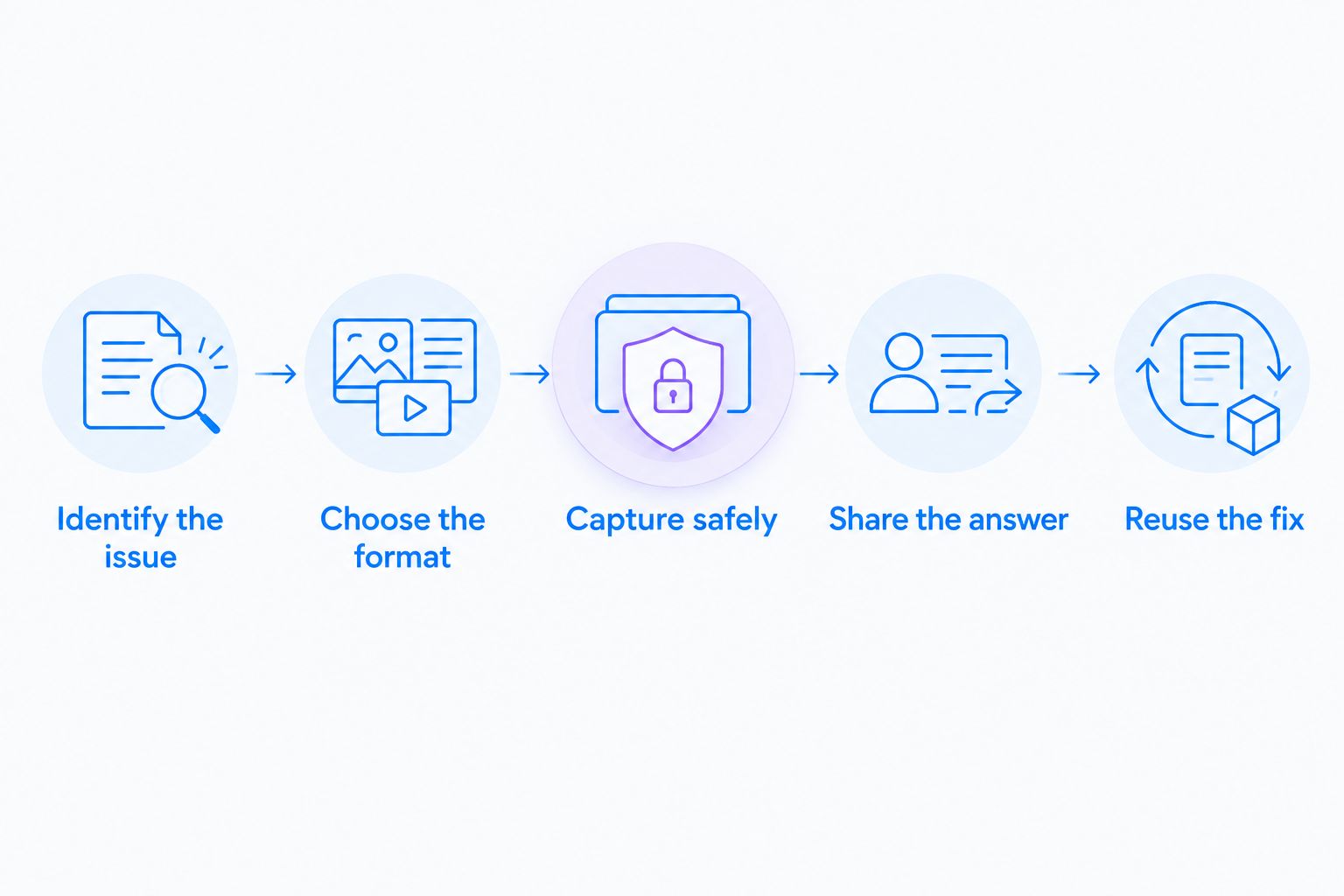
Use this sequence to decide what to capture. Do not record a video simply because the recorder is open.
- Identify the issue: Write the question the customer needs answered.
- Choose the format: Use a screenshot for a location, video for a sequence, and a guide for a repeatable process.
- Capture safely: Close unrelated windows and use synthetic account information during evaluation.
- Share the answer: Include a written summary and the next action beside the visual explanation.
- Reuse the fix: Assign an owner if the answer becomes training or documentation.
Set practical pilot targets rather than assuming shorter always means better. Try a 30-second recording for a simple setting change, a 60-second recording for a reproducible sequence, and a 3-step guide for a recurring task. These are suggested evaluation exercises, not product limits or measured performance claims.
Healthcare: approve the workflow before recording
Healthcare teams evaluating screen capture in 2026 need more than a recording feature. Confirm current plan eligibility, Business Associate Agreement availability, applicable feature limitations, and approved configuration directly with the vendor before using protected health information.
Do not treat a vendor-level statement as approval for every capture, request, integration, or sharing destination. Use synthetic examples throughout evaluation.
Give equal attention to these workflows:
- Support and IT troubleshooting: Reproduce a login or display problem in a test environment. Check what the recording exposes and who receives it.
- Clinical team communication: Demonstrate an approved training workflow with synthetic records. If staff need to request videos, confirm whether that collection path is covered before enabling it.
- Operations training and SOPs: Document a nonclinical administrative process, assign a reviewer, and define when the instructions need updating.
For any support integration, verify the exact connector and data flow with official vendor documentation. Approval of the capture application does not automatically approve the destination where an agent places its link.
How the ranking works
This ranking favors fit for routine support work: screenshot and video coverage, clear explanations, reusable documentation, sharing, and governance. It is a workflow-based shortlist, not a claim of hands-on benchmark testing.
Specialist tools rank lower because their strengths address narrower jobs. That does not make them worse at those jobs. A screenshot-heavy documentation team has a different default from an engineering specialist preparing a controlled recording.
Which screen capture software should you choose?
Choose Zight for a support team that needs screenshots, recordings, and AI-powered documentation together. Choose Loom when narrated video is the main deliverable, or Snagit when annotated screenshots carry most of the explanation.
Keep OBS Studio and ShareX on specialist shortlists. Their recording and automation controls deserve evaluation when those controls solve a defined operational need.
For your 2026 purchase decision, require a completed support example, an accessible customer handoff, and an approved information-handling process. A feature demonstration alone does not establish workflow fit.
FAQ
What's the best screen capture software for customer support teams?
Zight is the best overall fit in this shortlist for teams combining screenshots, screen recordings, and AI-powered documentation. Validate customer access and governance requirements before selecting it.
Is Loom better than a screenshot tool for customer support?
Loom is better suited to narrated sequences, while a screenshot tool fits questions about a specific location or setting. Choose the format that lets the customer complete the task with the least searching.
Should support agents record every customer reply?
No. Use text for simple answers, screenshots for visual locations, and recordings when movement or sequence matters.
Which option fits screenshot-heavy support documentation?
Snagit fits screenshot-heavy instructions because it supports screenshot editing and annotation. Use recording instead when a static image cannot explain the behavior.
Is OBS Studio a replacement for a support communication workflow?
No. OBS Studio provides recording controls, but your team still needs a process for sharing, written summaries, retention, and documentation.
Can healthcare teams use screen capture software with patient information?
Only use patient information after your organization approves the specific product, contract, configuration, and workflow. Verify current plan requirements, BAA availability, feature limitations, and sharing destinations directly with the vendor.
How should a team compare paid screen capture software in 2026?
Run the same synthetic support task through each candidate and review the finished customer handoff. Check capture effort, explanation clarity, recipient access, documentation reuse, and governance.
One last thing
Test the answer without its author present. Give the screenshot, recording, or guide to someone unfamiliar with the issue and ask them to complete the task.
If they need a live explanation, revise the artifact before standardizing the software. The capture is finished when the recipient can act, not when the recording stops.