Best overall workflow fit: Zight for teams combining screenshots, recordings, and documentation; best video-first alternative to evaluate: Loom; best local capture options: Windows Snipping Tool and macOS Screenshot with Markup. None is automatically a HIPAA-compliant workflow: approve the exact configuration, handling procedures, and applicable business associate agreement before capturing protected health information.
- The best HIPAA compliant screenshot and annotation tools need workflow-level approval, not just a vendor security claim.
- Zight is the strongest workflow fit here for teams combining screenshots, recordings, and documentation, subject to healthcare approval.
- Evaluate Loom for video-first explanations; evaluate Windows Snipping Tool or macOS Screenshot for local capture.
- Require plan-specific answers about BAAs, sharing, annotation, retention, and downstream processing before handling patient information.
Why this matters
A screenshot can expose a patient name, appointment, diagnosis, or account identifier. An annotation does not remove that information, and a shareable link creates another access decision.
For a 2026 purchase, separate capture capability from authorization to handle protected health information, or PHI. A useful screenshot editor can still be unsuitable for your approved healthcare workflow.
This shortlist ranks workflow fit, not certified compliance. Use synthetic examples throughout evaluation: a fictional appointment screen, a made-up support ticket, and a training page containing no real patient information.
What makes the best healthcare screenshot tool?
Use these criteria before comparing interfaces:
- Contractual scope: Establish whether a business associate relationship exists and obtain the required agreement before the vendor handles PHI.
- Capture boundaries: Confirm what the tool captures, where files go, and whether uploads happen automatically.
- Annotation and redaction: Distinguish arrows and highlights from irreversible removal of sensitive content. Verify exported results.
- Access and lifecycle: Review recipient authentication, sharing controls, retention, deletion, and applicable audit records.
- Workflow coverage: Evaluate screenshots, recordings, video requests, and documentation separately. Approval for one does not establish approval for the others.
- Downstream handling: Examine ticketing destinations, integrations, transcription, summaries, and generated guides before enabling them.
For paid evaluation, put these requirements into your purchasing checklist. A recording feature is not a substitute for the contractual and operational controls your security team requires.
Healthcare screenshot tools at a glance
| Tool | Best for | Standout capability | Key limitation |
|---|---|---|---|
| Zight | Teams combining capture and documentation | Screenshots, screen recordings, and shareable documentation workflows | Confirm healthcare plan eligibility, BAA terms, and permitted features before PHI use |
| Loom | Video-first explanations | Screen recording for narrated walkthroughs | Verify screenshot annotation needs separately from recording and confirm healthcare eligibility |
| Windows Snipping Tool | Local Windows screenshot markup | Capture and annotate screenshots on Windows | Local capture does not govern later storage, email, or ticket attachments |
| macOS Screenshot with Markup | Local Mac screenshot markup | Built-in capture with annotation through Markup | Sharing, retention, and organizational oversight require separate controls |
The local options serve a narrower purpose than a shared visual communication platform. They belong in the comparison because some teams need an approved screenshot workflow rather than a new hosted destination.
1. Zight: best for combined capture and documentation
Zight provides screenshots, screen recordings, and AI-powered guides or documentation for business teams communicating through shareable links. That combination fits a purchasing brief spanning support explanations, troubleshooting recordings, and operations instructions.
Evaluate the combined workflow rather than approving the screenshot feature in isolation. Ask for written confirmation of current healthcare plan requirements, BAA availability, covered features, and limitations before introducing PHI.
Best for: Teams seeking one evaluation across screenshots, recordings, and documentation.
Zight pros:
- Covers both still captures and video recordings.
- Supports asynchronous communication through shareable links.
- Includes guide and documentation software for process explanations.
Zight cons:
- Shareable links introduce recipient-access decisions beyond capture itself.
- Recording, video requests, generated documentation, and integrations each need separate scope checks.
- A team needing only local screenshot markup has a smaller requirement than this broader workflow.
For your 2026 evaluation, ask the vendor to demonstrate an approved screenshot workflow using synthetic information. Then repeat the exercise for recordings, Request Links, and Playbooks; require confirmation of whether each feature is included in the proposed healthcare configuration.
Use the plan information to frame the purchasing discussion, then obtain written healthcare terms rather than treating a feature list as authorization.
Verdict: Hold PHI use until the proposed plan, agreement, and feature scope pass review.
2. Loom: best for video-first explanations
Loom is a screen-recording option for narrated walkthroughs. Evaluate it first among the alternatives when your main requirement is showing a sequence rather than marking up a still image.
For example, a support analyst can demonstrate an error using a synthetic account while narrating the steps. That establishes the recording workflow's usefulness; it does not establish permission to record patient information.
Best for: Teams whose primary deliverable is a narrated screen walkthrough.
Loom pros:
- Fits explanations where the order of actions matters.
- Combines screen context with spoken explanation.
- Provides an alternative to asking recipients to reconstruct steps from separate still images.
Loom cons:
- A video-first workflow does not answer every screenshot-annotation requirement.
- Recordings require review for unintended content across the captured sequence.
- Healthcare suitability requires current, plan-specific contractual and feature verification.
Ask Loom to demonstrate the exact annotation, export, sharing, and deletion workflow your team needs. Confirm current BAA availability and eligible features directly; do not transfer another vendor's approval criteria or assume all recording features have identical coverage.
Verdict: Hold until video-first requirements and healthcare approval both pass.
3. Windows Snipping Tool: best for local Windows markup
Windows Snipping Tool captures screenshots and provides annotation tools. It suits a narrow requirement: capture part of a screen, mark the relevant area, and handle the resulting file through an approved process.
The application is only one part of that process. Device security, save location, synchronization, and the destination receiving the screenshot still matter.
Best for: Windows teams with approved devices and an existing secure destination for screenshots.
Windows Snipping Tool pros:
- Provides screenshot capture within Windows.
- Supports visual markup for directing attention.
- Fits workflows that do not need a new hosted screenshot destination.
Windows Snipping Tool cons:
- Does not by itself establish organization-wide file handling rules.
- Local files can move into unapproved folders or messages.
- Annotation does not establish that sensitive content has been irreversibly removed.
Test the complete route from capture to deletion on your managed device. Inspect whether approved folders synchronize elsewhere, and verify that recipients receive the intended file rather than a broader screen capture.
Verdict: Buy into this workflow only when local storage and the receiving system are approved.
4. macOS Screenshot with Markup: best for local Mac annotation
macOS Screenshot captures screen content, and Markup provides annotation tools for supported images. Together, they fit teams that need a still image with visual emphasis rather than a shared recording workspace.
As with Windows, the important boundary extends beyond the capture utility. Review where files are saved, how they are shared, and which organizational controls apply.
Best for: Mac teams with a defined local-capture and approved-transfer process.
macOS Screenshot with Markup pros:
- Provides built-in screenshot capture on Mac.
- Supports annotation through Markup.
- Fits a still-image workflow without requiring a separate recording process.
macOS Screenshot with Markup cons:
- Local annotation does not establish recipient authorization.
- Shared folders and later transfers require separate review.
- Markup alone is not evidence of secure redaction.
Use a synthetic screenshot to rehearse capture, annotation, export, and transfer. Open the exported file and inspect its contents before treating the process as ready for regulated information.
Verdict: Buy into this workflow when managed Mac controls and approved transfer procedures cover the entire route.
Approve the workflow before the rollout
For a 2026 rollout, document the complete route a capture takes. Include the source application, endpoint, storage location, recipients, and any connected processing service.
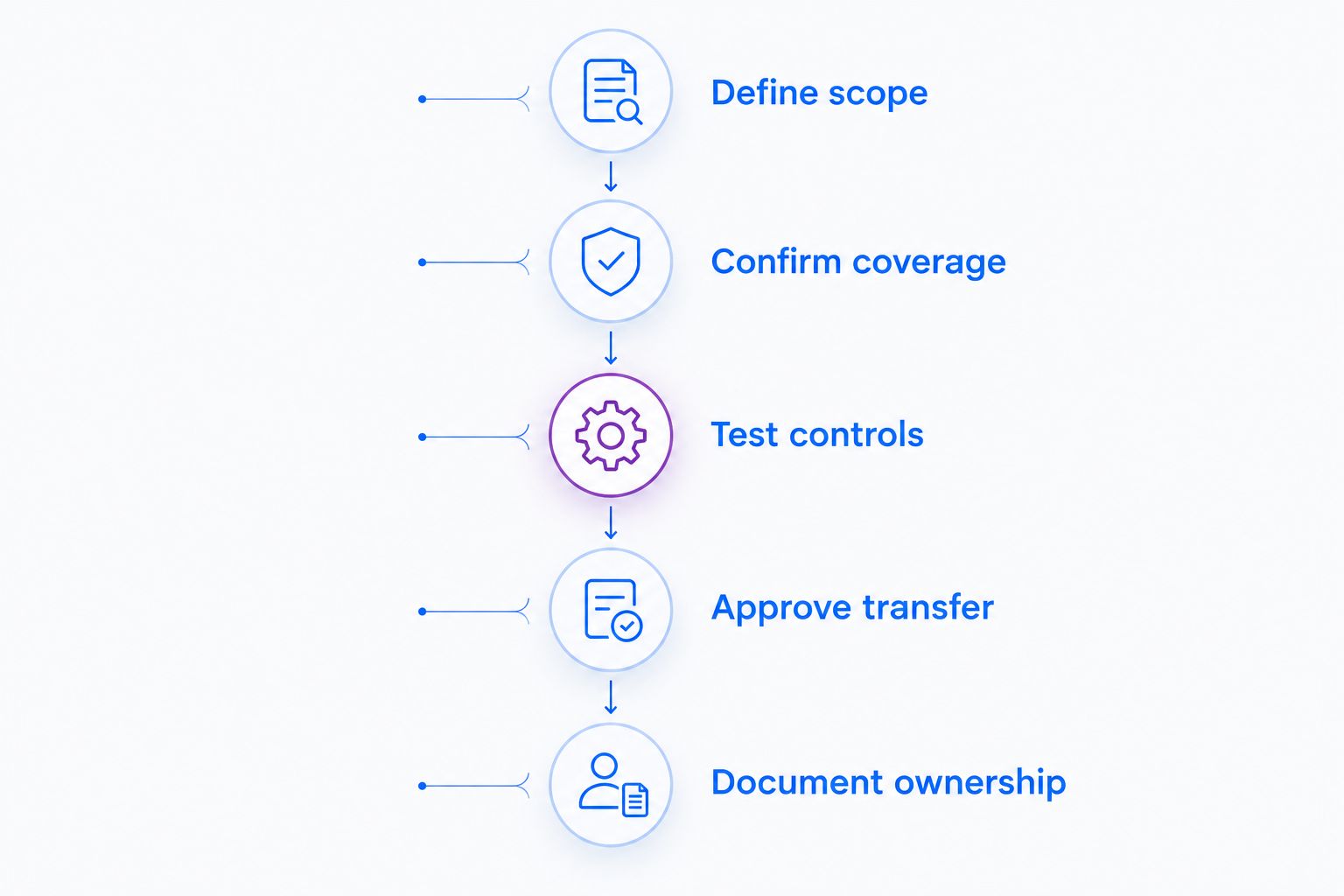
Use this sequence for each proposed configuration:
- Define scope: Identify the task and whether PHI is necessary. Prefer synthetic information whenever it can demonstrate the issue.
- Confirm coverage: Review the applicable agreement, plan, features, and responsibilities with your privacy and security teams.
- Test controls: Exercise capture boundaries, recipient access, downloads, retention, and deletion using fictional records.
- Approve transfer: Check every destination, including support tickets, messages, and documentation systems.
- Document ownership: Assign responsibility for access reviews, workflow changes, and incident handling.
Set a practical pilot task: capture 1 screenshot per issue, reproduce 1 recorded troubleshooting sequence, and create 1 training guide using synthetic information. These are evaluation tasks, not claims about a product's performance or compliance.
Test exports as well as previews. A workflow is not ready merely because the original editor looks correct.
Test three healthcare workflows equally
Support and IT troubleshooting
Reproduce a login problem with a fictional account. Capture the relevant error, annotate the control involved, and send the result through the proposed support process.
For a 2026 support rollout, require each proposed integration to be named in the approval record and verified against current official vendor documentation. Confirm what the integration transfers and where attachments or links remain accessible.
Clinical teams recording and requesting videos
Use a synthetic scheduling screen to test an outbound explanation and a requested recording. Review instructions, submission access, recipient permissions, and retention separately.
Do not assume requesting a video has the same scope as recording one internally. Evaluate the submitter's device, surrounding screen content, and the destination receiving the recording. Keep the exercise procedural, not clinical.
Operations teams creating training and SOPs
Build an onboarding guide from a fictional administrative workflow. Inspect screenshots, generated text, and exports for unintended information before publishing.
For 2026 operations training, verify whether automated transcription, summaries, and guide generation are permitted under the proposed configuration. The approval should identify the features staff can use, not merely the vendor name.
How this shortlist is ranked
The ranking prioritizes combined workflow coverage, then video-first explanation, then local screenshot capture on each operating system. It does not rank vendors by unverified security controls or imply a compliance certification.
The buying decision returns to the same criteria: contractual scope, capture boundaries, redaction, access, lifecycle, and downstream handling. Reject a candidate when its approved configuration cannot support your required workflow, even if its editor is convenient.
Which healthcare screenshot tool should you choose?
Zight is the best workflow fit in this shortlist for teams combining screenshots, recordings, and documentation, subject to healthcare approval. Choose Loom for a video-first evaluation; choose an operating-system capture utility when your requirement is local markup within an already approved process.
For a 2026 purchase, request a written answer to one question: which exact features and data flows does the proposed healthcare arrangement cover? Keep PHI out of the pilot until that answer and your internal approval are complete.
FAQ
What's the best HIPAA compliant screenshot and annotation tool?
The best choice is the tool whose exact configuration and data flows meet your healthcare requirements. Compare screenshot capture, annotation, sharing, agreements, retention, and downstream processing rather than relying on a product label.
Does a screenshot tool need a business associate agreement?
A BAA is required when the vendor is acting as a business associate under HIPAA. Have your privacy or legal team assess the relationship and proposed data handling before the vendor receives PHI.
Is drawing a box over patient information enough to redact it?
A drawn box is not proof of secure redaction. Use an approved removal process and verify the exported result rather than relying on how the image looks inside the editor.
Can healthcare staff use built-in screenshot tools?
Built-in screenshot tools require an approved handling workflow just like other capture methods. Review the managed device, save location, synchronization, sharing destination, and deletion process before capturing PHI.
Is a screen recording better than an annotated screenshot?
Use a screen recording when the sequence of actions matters; use an annotated screenshot when one screen explains the issue. Review recordings for unintended information throughout the captured sequence.
Can a clinical team request a troubleshooting video?
Evaluate requested videos as a separate workflow before using them with PHI. Confirm submission controls, permitted content, storage, recipient access, and applicable contractual coverage using synthetic examples.
What should we check before buying healthcare capture software?
Confirm the proposed plan, applicable BAA, permitted features, access controls, retention, deletion, and downstream processing. Require current written answers and test the approved configuration with synthetic information.
One last thing
The most useful screenshot can be the one you never take from a live patient system. Reproduce the issue with synthetic information whenever that preserves the explanation; you give the recipient useful context without carrying real patient details into the capture workflow.