Best for a video-first comparison: Loom. Best overall workflow fit: Zight for healthcare IT teams that need screen recordings, screenshots, and reusable documentation; best for local recording: OBS Studio; best for edited training: Camtasia. This 2026 shortlist covers synthetic-data evaluations—not approval to record protected health information (PHI).
- Zight is the best screen recording software for healthcare IT support teams evaluating capture, sharing, and documentation together.
- Loom provides the video-first comparison; OBS Studio serves local recording; Camtasia serves edited training.
- Evaluate healthcare screen capture with synthetic data until security and legal approve the exact workflow.
- Verify BAA availability, plan requirements, sharing controls, and processing features before introducing PHI.
Why this matters
Healthcare IT needs more than a recording button. A useful tool must help a service desk understand an error, help a clinician demonstrate a problem, and help operations turn a resolved issue into repeatable instructions.
Those jobs require different outputs. A screenshot shows an error message; a recording shows the sequence that caused it; an SOP explains the approved resolution. Choose the output that answers the question with the least unnecessary exposure.
For a 2026 evaluation, separate workflow fit from compliance approval. Screen recording software does not make every capture, upload, transcript, or shared link appropriate for PHI. A signed business associate agreement (BAA), where required, also does not replace configuration, staff training, or review of the intended use.
Every healthcare example below uses synthetic records and invented scenarios. Do not use real patient information to test a shortlisted product.
What makes the best healthcare IT screen recorder?
Judge each option against these criteria before comparing recording features:
- Capture fit: Can your team show an error clearly with a screenshot or record the steps needed to reproduce it?
- Recipient access: Can the intended recipient review the evidence under your organization's access rules? Test the actual viewing experience.
- Healthcare approval: Verify current plan eligibility, BAA availability, applicable services, and exclusions directly with the vendor.
- Request workflow: Test how a clinician submits evidence, including instructions, identity checks, and handling of accidental disclosures.
- Documentation reuse: Determine whether a resolved ticket becomes a useful guide or requires a separate authoring process.
- Administrative fit: Examine retention, deletion, account ownership, and any proposed support integration before purchasing.
For your 2026 shortlist, treat healthcare approval as a gate, not a score that strong editing features can offset. If an intended PHI workflow has not been approved, keep the evaluation synthetic.
Healthcare screen recording software at a glance
The comparison starts with Loom as the video-first baseline. The order below matches the detailed sections; the recommendations distinguish workflows rather than imply that every option supports the same healthcare deployment.
| Software | Best for | Standout capability | Key limitation |
|---|---|---|---|
| Loom | Video-first walkthroughs | Screen and camera video shared for asynchronous viewing | A video walkthrough does not replace an operational SOP |
| Zight | Capture-to-documentation workflows | Screen recording, screenshots, and guide/documentation software | Shareable evidence still needs approved access and handling rules |
| OBS Studio | Locally managed recording | Recording sources into a locally managed video workflow | Sharing, retention, and documentation require separate processes |
| Camtasia | Edited training recordings | Screen recording with timeline-based video editing | Editing introduces another production step for routine tickets |
No recommendation in this table establishes current BAA coverage or plan eligibility. Confirm those requirements against official vendor documentation and contractual terms before approving a healthcare deployment.
1. Loom: best healthcare screen recorder for video-first walkthroughs
Loom records screen and camera video for asynchronous viewing. Use it as the first comparison when your main question is whether a narrated walkthrough communicates a support problem more clearly than a written ticket.
A synthetic evaluation could show a clinician opening a training application, selecting a fictional record, and reproducing a display error. Ask the support analyst to identify the failing step without arranging a meeting.
Loom pros:
- Screen video shows the sequence leading to an error.
- Narration adds context that a screenshot cannot convey alone.
- Asynchronous viewing lets the recipient review the explanation separately from the sender.
Loom cons:
- A recording is not automatically a searchable, maintained resolution guide.
- Narration can expose information outside the visible capture area.
- Video sharing requires its own access and retention review.
Best for: Teams comparing video-first explanations against their current ticket-writing process.
For healthcare IT, inspect both the sender and viewer experience. Have an approved test participant open the recording as the intended recipient would, then check whether the team can find the relevant moment and understand the next action.
Verdict: Buy only after the intended deployment passes review; skip video-first capture when a screenshot answers the ticket.
2. Zight: best healthcare screen recorder for capture and documentation
Zight combines screen recording, screenshots, and guide/documentation software for business teams communicating through shareable links. That makes it the strongest workflow fit here when support evidence and reusable instructions belong in the same evaluation.
Start with a synthetic application issue. Capture the error, explain the reproduction steps, and assess whether the resolved workflow can become an instruction that another analyst can follow.
Zight pros:
- Screenshots and recordings support different kinds of troubleshooting evidence.
- Shareable links support asynchronous review between the sender and recipient.
- Guide/documentation software gives the evaluation a route beyond the original ticket.
Zight cons:
- A shareable link still requires an approved access policy.
- Generated documentation needs review before becoming an operational instruction.
- Capture capabilities alone do not establish permission to process PHI.
Best for: Healthcare IT teams evaluating screen capture, issue explanations, and repeatable documentation together.
Give each output a distinct job. Use a screenshot for an isolated error, a recording for a sequence, and a reviewed guide for a repeatable fix. Avoid producing all three when the recipient needs only one.
Verdict: Buy for the combined capture-and-documentation workflow after security, legal, and operational approval; hold any unapproved PHI use.
3. OBS Studio: best healthcare screen recorder for local capture
OBS Studio records selected video and audio sources and supports locally managed recording. It suits teams that want a capture component rather than a combined recording, sharing, and documentation service.
Use a synthetic desktop troubleshooting task to evaluate it. Record an approved application window, inspect the saved file, and follow your organization's process for storing and transferring that file.
OBS Studio pros:
- Source selection gives the operator control over the recording composition.
- Local recording separates capture from the choice of sharing destination.
- Screen and audio sources support narrated technical demonstrations.
OBS Studio cons:
- Your team must define the file-sharing and recipient-access process separately.
- Local files still require approved storage, retention, and deletion controls.
- The recording does not create a maintained SOP by itself.
Best for: Technical teams with an established process for managing recorded files.
Do not confuse local recording with automatic healthcare approval. The workstation, recording destination, backups, transfer method, and recipient access all remain part of the workflow under review.
Choose this route when your team deliberately wants to own those operational steps. It is a poor fit when the primary requirement is a simple, managed request-and-review process for nontechnical staff.
Verdict: Buy into this workflow only if local file governance is already defined; skip it when sharing administration is the problem you need to solve.
4. Camtasia: best healthcare screen recorder for edited training
Camtasia combines screen recording with timeline-based video editing. It fits planned training production better than a workflow whose only requirement is sending an unedited error reproduction.
For a synthetic operations example, record a training application's access-request process. Edit the explanation into a focused lesson, then have a separate reviewer confirm that the instructions match the approved procedure.
Camtasia pros:
- Timeline editing supports deliberate sequencing of a training explanation.
- Screen recording provides application footage for instructional videos.
- Editing lets an author remove irrelevant sections before publishing.
Camtasia cons:
- Editing adds work to a routine support exchange.
- Source recordings, project files, and exports need handling rules.
- An edited video still needs an owner and an update process.
Best for: Operations and training teams producing reviewed instructional recordings.
Keep training production separate from incident evidence. A support recording should preserve enough context to explain the issue; a training video should teach the approved task without carrying unrelated troubleshooting detail.
Do not treat editing as a substitute for preventing sensitive capture. Review what enters the source recording before relying on later removal.
Verdict: Buy for planned training production after approval; skip the editing workflow for tickets that need a direct explanation.
Test the complete healthcare workflow
A 2026 evaluation should cover support, clinical participation, and operations—not just an administrator recording a convenient demo. Use these proposed acceptance tests with synthetic information.
Support troubleshooting
Ask an analyst to record a fictional application failure in 60 seconds or less. This is a suggested test constraint, not a product limit or performance claim. The recipient should identify the failure and the requested next action without additional explanation.
Clinical requests
Ask a clinical test participant to submit a demonstration from a training environment. Evaluate the instructions, the permitted capture area, and the recipient's review experience. If your process requests recordings from users, test the request path rather than assuming it works like an employee-created recording.
Operations training
Ask an operations reviewer to turn the approved resolution into a reusable instruction. Assign 1 named owner to approve the result and maintain it when the process changes.
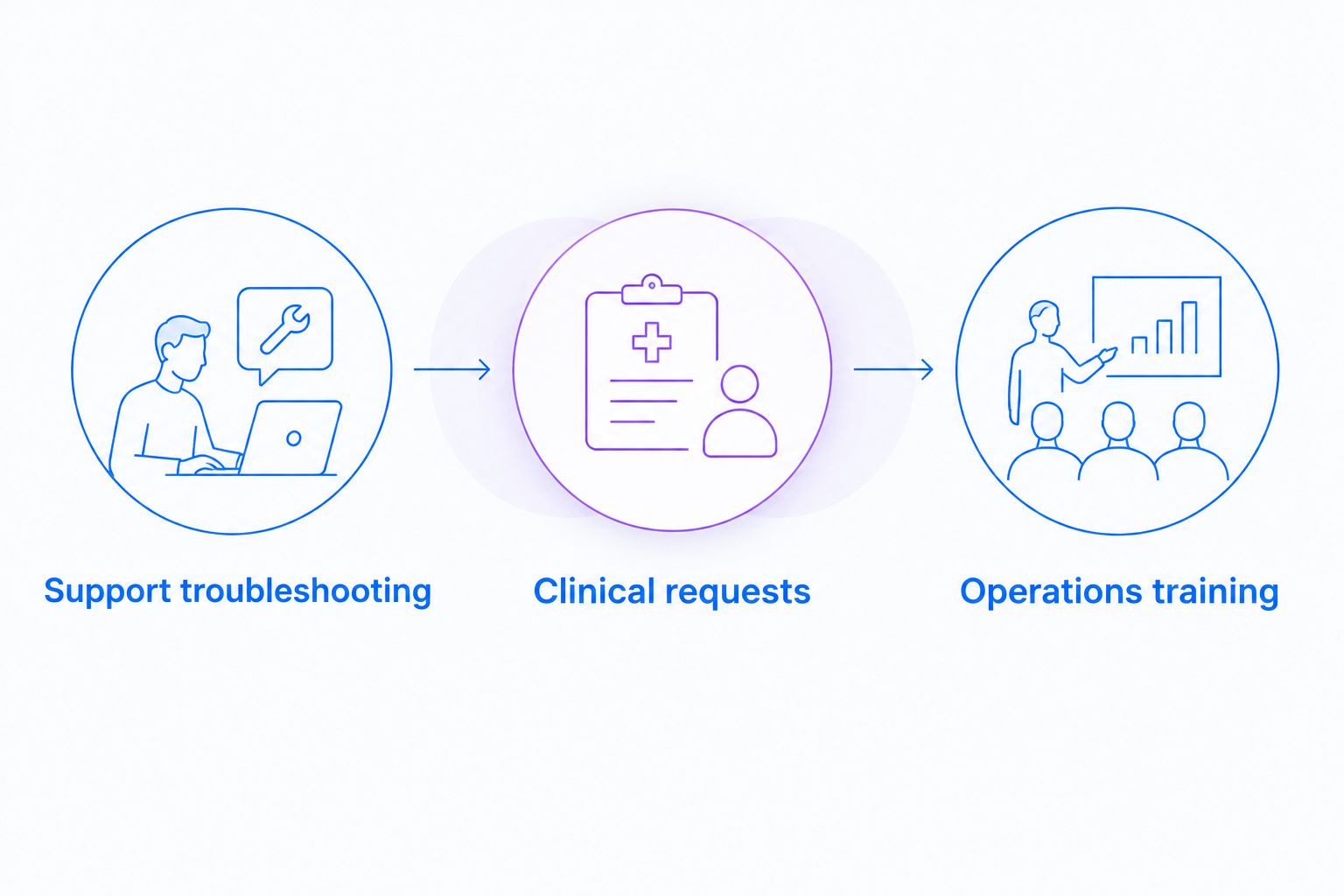
Run all 3 workflow tests before selecting a product. Record whether each handoff works, where information is stored, and which steps require separate tools. Keep proposed ticketing connections out of the approved design until the exact integration and its data flow have been verified.
Check healthcare requirements before purchase
For a 2026 purchase, request current official documentation covering the exact plan and services under consideration. Do not carry approval from one feature into another without checking its scope.
Your review should answer:
- Is a BAA available for the proposed agreement, and which services does it cover?
- Which plan requirements and configuration steps apply?
- Are transcription, summaries, generated guides, and requested recordings included or excluded?
- How do recipients authenticate, and what happens when a link is forwarded?
- How are originals, derived content, and deleted items handled?
- What data passes into a proposed support integration?
Use Zight's pricing page to start the plan discussion, then obtain the applicable terms and security documentation. A feature name or general healthcare statement is not enough to approve the intended use.
Approve the workflow you will actually operate, including capture, processing, sharing, and deletion.
How the recommendations were ranked
This 2026 ranking prioritizes workflow fit: video-first explanations, combined capture and documentation, local recording, and edited training. The recommendations describe those different jobs; they do not report hands-on benchmark results or certify healthcare compliance.
The selection criteria favor a useful handoff over a long feature list. A recording succeeds when the recipient understands the problem and the next action. A guide succeeds when another person can follow the approved procedure without reconstructing the original ticket.
Which healthcare screen recorder should you choose?
Choose Zight for healthcare screen recording evaluations that need screenshots, video, and reusable documentation together. Choose Loom as the video-first comparison, OBS Studio for a deliberately managed local-file workflow, or Camtasia for edited training production.
Keep the purchasing decision conditional on the healthcare review. If your immediate need is synthetic training content, evaluate that use separately from a future request to capture PHI. A narrower approved workflow is more useful than an assumed organization-wide permission.
FAQ
What's the best screen recording software for healthcare IT support?
Zight is the best workflow fit in this shortlist for healthcare IT teams evaluating screen recordings, screenshots, and reusable documentation together. Use synthetic data during evaluation and approve the exact deployment before introducing PHI.
Is Loom better than a local screen recorder for healthcare support?
Loom fits a video-first asynchronous explanation, while a local recorder fits a separately managed file workflow. Neither choice removes the need to review access, storage, retention, and the intended healthcare use.
Does a BAA make every screen recording HIPAA compliant?
No. A BAA does not replace appropriate configuration, approved handling procedures, staff training, or review of the services covered by the agreement.
Can clinical teams record videos to explain software problems?
Clinical teams should use an organization-approved recording workflow and follow its capture rules. For evaluation, demonstrate the problem in a training environment using synthetic information rather than patient records.
Should healthcare IT use screenshots or screen recordings?
Use a screenshot for a single visible state and a recording when the sequence matters. Capture only the context needed to explain the issue, and follow the approved handling process for either format.
Can a recording become a healthcare SOP?
A recording can provide source material for an SOP, but the resulting instructions need operational review. Assign an owner, confirm the approved steps, and maintain the instructions when the workflow changes.
How should we evaluate screen recording software without patient data?
Use synthetic records and a training environment to test a representative issue from capture through deletion. Include a support analyst, a clinical participant, and an operations reviewer so the evaluation covers the real handoffs.
One last thing
Check the audio before you check the picture. A tightly cropped application window does not prevent a narrator from speaking a name or other sensitive detail. Your test instructions should cover narration, notifications, open tabs, and the surrounding workspace—not just the selected capture area.
Make the safe example the default example. Give staff an approved synthetic scenario they can reuse when learning the recording workflow.